
What is a key for?
An API key is a long code that a translation service gives you. When you paste it into Dijitransio, the English lines from the game are sent to that service, which translates them into Arabic or Turkish and sends the translation back. It changes three things:
- Speed. Our own translation runs on your phone; on older or less powerful phones a line can take a little longer. Services such as Microsoft Azure, Google Cloud and DeepL usually respond over the internet in under half a second. On newer phones the difference is small.
- Context. Gemini, OpenAI and Claude are language models: when they translate a line, they also read the previous lines and keep track of who is talking to whom. Forms of address and tone stay more consistent.
- Cost. The service bills you directly; you pay nothing extra to Dijitransio. The four services below start with a free quota.
Your key is stored encrypted on your phone; subtitles go only to the service you choose, and the key is never sent to the TV or to us. If the service doesn't respond for a moment or the quota runs out, the game doesn't stop: those lines come through our own free translation.
Services you can use for free
You can start with these four without paying. Tap a card to jump to that service's step-by-step guide.
Paid services
Language models with no free quota, where you pay for what you use. The cost is very low, but you need to add credit to your account (with Claude, once the small trial credit given to new accounts runs out).
Which one should I choose?
- I want to try it without entering a card: Google Gemini. Your Google account is enough.
- The fastest, with the biggest free quota: Microsoft Azure. 2 million characters every month, and it doesn't expire.
- The most consistent translation in story-driven games: Gemini, Claude or OpenAI. Language models take the previous lines into account.
- I play a few hours a month: the free quota of Google Cloud or DeepL is easily enough.
You can start with one service and switch later. You can add several keys; you choose which one is used on the Translation engine screen.
How many hours of play does the free quota cover?
We based the calculation on a dialogue-heavy game: about 25,000 characters an hour, or roughly 400 lines of dialogue. In games with few cutscenes and lots of action, the quota lasts much longer.
| Service | Free quota | Approximate play time | When the quota runs out |
|---|---|---|---|
| Microsoft Azure | 2 million characters every month | 80 hours a month | On the free tier it stops until the end of the month and nothing is charged; if you switch to the paid S1 tier, $10 per million characters (~$0.25 an hour) |
| Google Cloud | 500,000 characters every month | 20 hours a month | $20 per million characters (~$0.50 an hour) |
| DeepL | A one-time 1 million characters | 40 hours in total | Paid plan |
| Google Gemini | Request limits per minute and per day | Every day, up to the limit | The per-minute limit resets after a minute, the daily limit the next day |
| OpenAI (GPT-6 Luna) | None | Paid | Usually a few cents an hour |
| Claude (Haiku 5.5) | A small trial credit for new accounts | As far as the trial credit goes | Usually a few cents an hour |
Prices are from the services' official pages, November 2026. Services may change their prices; check the latest on each service's own page. With language models, the cost is based on tokens rather than characters: a token is a small piece of text (a word is usually 1–3 tokens). Input is the text sent to the service; output is the translation the service writes. Hourly amounts are estimates.
Entering the key in Dijitransio
Once you've copied the key from the service's page, the rest is the same for every service and every TV: because the Dijitransio app on your phone does the translating, the key is pasted into Dijitransio on your phone. No key is entered on the TV. You need Dijitransio installed on your phone: on an Android phone from Google Play, on an iPhone from the App Store.
On phone Paste it into Dijitransio on your phone
The steps are the same with Android TV, LG and other screens; the screens are also the same on Android phones and iPhone.
- In Dijitransio on your phone, open Translation engine from the home screen.
- Choose your service from the With your own API key list.
- If you've copied the key, tap Paste from clipboard. If you use Azure, enter the region too (leave it empty if you chose Global).
- Tap Save and test. When Working ✓ appears, the service is selected.
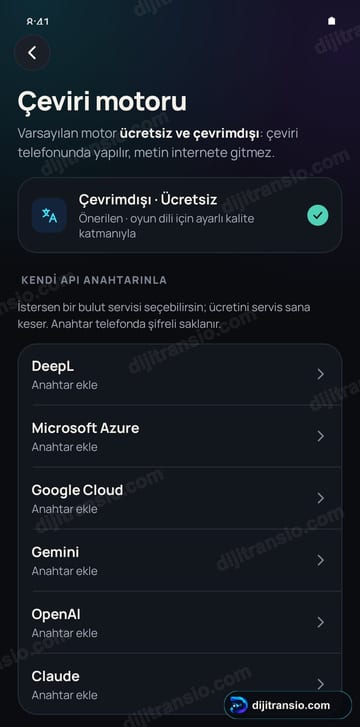
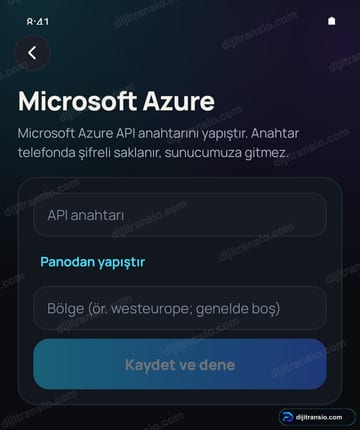
Microsoft Azure: step by step
Microsoft's translation service is called Azure Translator (Azure AI Translator). Its free tier is F0: 2 million characters every month, and it doesn't expire. Each Azure subscription can have one free Translator resource.
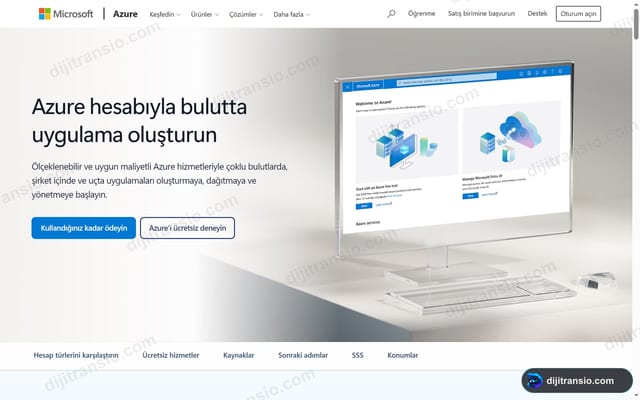
1. Create an account. At azure.microsoft.com, press Try Azure for free and sign in with your Microsoft account. You'll be asked for a card to verify your identity; a temporary $1 authorization hold may be placed on your card and then released. Nothing is charged for the free tier.
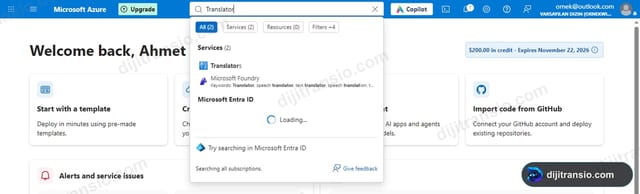
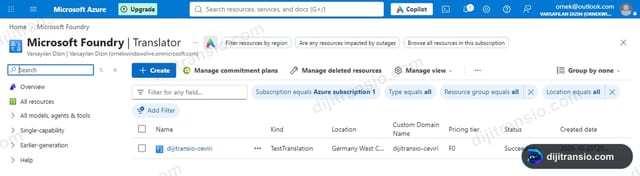
2. Find Translator. Go to portal.azure.com. Type Translator in the search box at the top and choose Translators from the list.
3. Press Create. On the page that opens, press the + Create button at the top left.
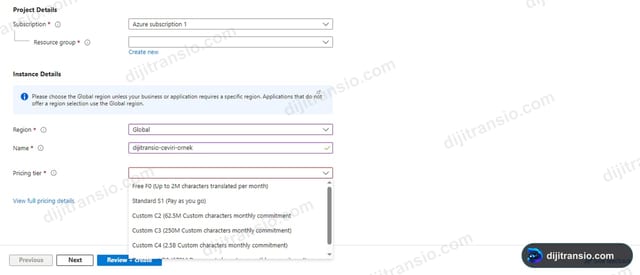
4. Fill in the form and choose Free F0. Subscription: your own subscription. Resource group: Create new, for example dijitransio. Region: Global. Name: a unique name, for example dijitransio-ceviri-adin. Pricing tier: Free F0. Then press Review + create at the bottom, and Create.
5. Copy the key. When the deployment finishes, press Go to resource. In the menu on the left, open Resource Management › Keys and Endpoint and press the copy icon next to KEY 1. Also note the Location/Region value on the same page.
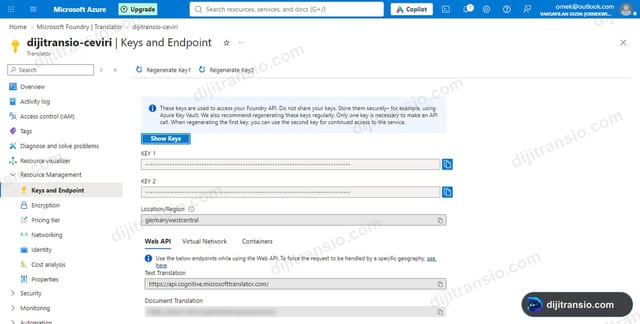
6. Enter it in Dijitransio. Paste it into Translation engine in Dijitransio on your phone (step by step). Choose Microsoft Azure as the service. Region box: leave it empty if you chose Global; if you chose another region, enter the Location/Region value exactly as shown (for example germanywestcentral). Save and test.
Google Gemini: step by step
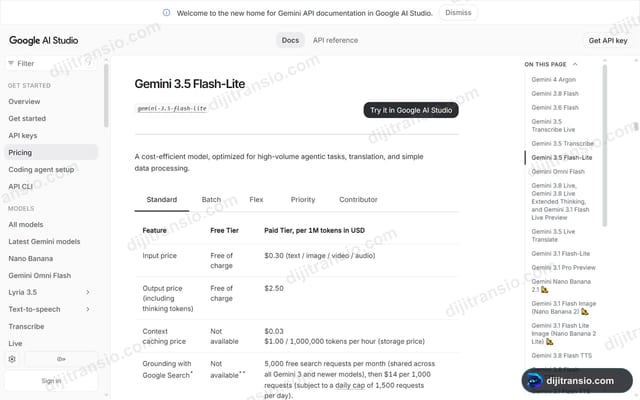
Gemini is Google's language model. Dijitransio uses the fast and economical Gemini 3.5 Flash-Lite model, which is part of the Gemini API's free tier. No card is needed; your Google account is enough.
- Open AI Studio. Sign in at aistudio.google.com with your Google account. The first time, you'll be asked to accept the terms of use.
- Create a key. On the API keys page, press the Create API key button. If you're asked to choose a project, pick the default project or create a new one. For some projects, Google asks for a quick verification by scanning a QR code with your phone, to prevent abuse.
- Copy it and enter it in Dijitransio. Copy the new key. Paste it into Translation engine in Dijitransio on your phone (step by step). Choose Gemini as the service.
Google Cloud: step by step
Google Cloud Translation is a classic translation service; the first 500,000 characters each month are free (Google applies this as a $10 credit every month). You need a billing account, which means linking a card.
- Open the console. Sign in at console.cloud.google.com with your Google account, create a new project if needed and link a billing account to the project.
- Enable the translation API. In APIs & Services › Library, find Cloud Translation API and press Enable.
- Create a key. Go to APIs & Services › Credentials › Create credentials › API key. Copy the new key. For security, you can edit the key and restrict it so that it can only be used with the Cloud Translation API.
- Enter it in Dijitransio. Paste it into Translation engine in Dijitransio on your phone (step by step). Choose Google Cloud as the service.
Above the quota, you pay $20 per million characters. We recommend setting up a monthly budget alert in the billing dashboard.
DeepL: step by step
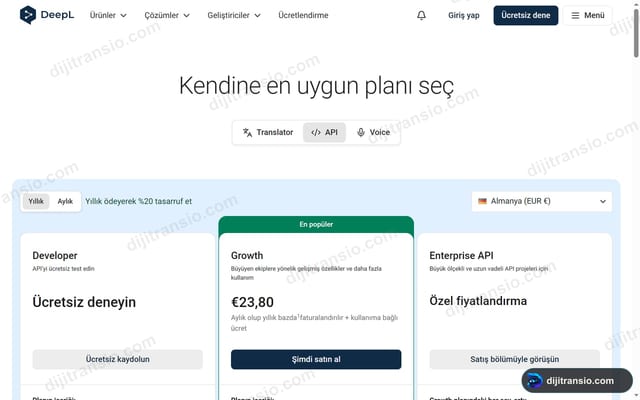
DeepL's developer plan is called Developer: a one-time 1 million characters for free. When the credit runs out, you move to a paid plan.
- Choose the plan. At deepl.com, go to the Pricing › API tab and press Sign up for free on the Developer card.
- Create an account. Sign up with your email address; you may be asked for card details for verification during sign-up. If you already have a DeepL Translator account, you may need to create a separate account for the API.
- Copy the key. In your account, go to the API Keys page (deepl.com/your-account/keys) and copy your key. Free keys end in
:fx; Dijitransio picks the right address based on this by itself. - Enter it in Dijitransio. Paste it into Translation engine in Dijitransio on your phone (step by step). Choose DeepL as the service.
OpenAI: step by step
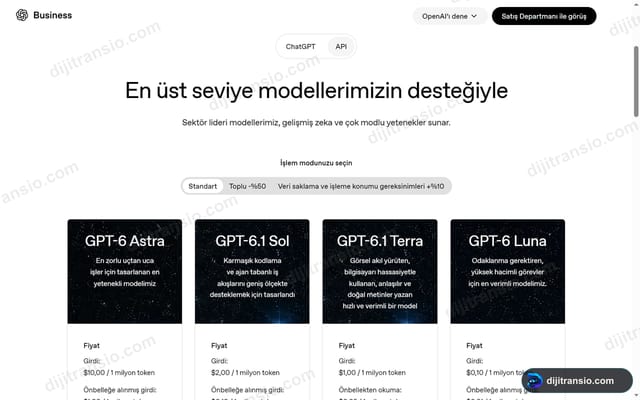
With OpenAI, Dijitransio uses GPT-6 Luna, a model built for high-volume work: $0.10 per million input tokens and $0.50 per million output tokens. There is no free quota.
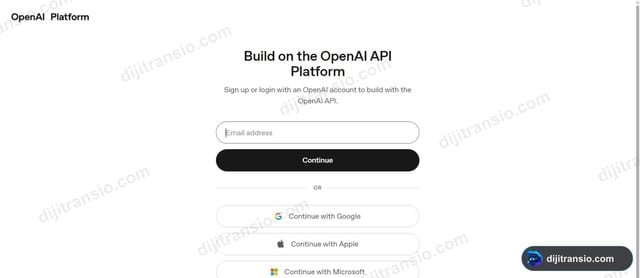
1. Create an account. Sign up or sign in at platform.openai.com.
- Add credit. On the Settings › Billing page, add a card and top up a small balance. You can also set a monthly spending limit there.
- Create a key. On the API keys page, press Create new secret key and copy the key right away; once the window closes, the full key is never shown again.
- Enter it in Dijitransio. Paste it into Translation engine in Dijitransio on your phone (step by step). Choose OpenAI as the service.
Claude: step by step
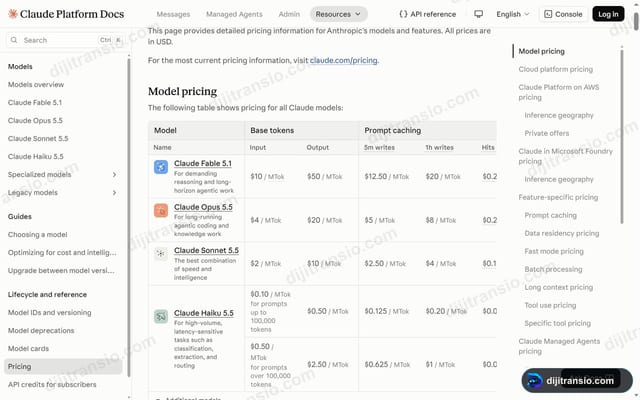
With Claude, Anthropic's language model, Dijitransio uses the fast and economical Claude Haiku 5.5: $0.10 per million input tokens and $0.50 per million output tokens. New accounts get a small free credit to try out the API.
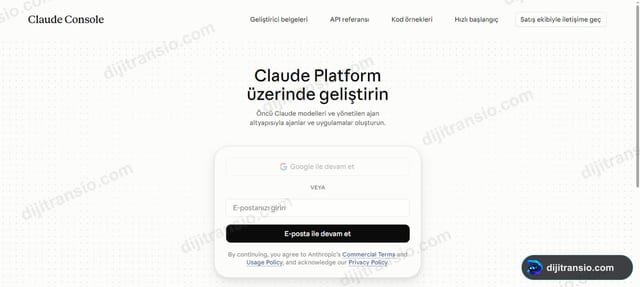
1. Create an account. Sign up or sign in at platform.claude.com.
- Add credit. When your trial credit runs out, add a card and buy credit on the Settings › Billing page.
- Create a key. On the Settings › API Keys page, press Create Key and copy the key.
- Enter it in Dijitransio. Paste it into Translation engine in Dijitransio on your phone (step by step). Choose Claude as the service.
How can I make translation faster?
- On an older phone, choose a cloud service. Our own translation runs on your phone's processor; on older phones a line can take a little longer. Microsoft Azure, Google Cloud or DeepL usually bring that line back over the internet in under half a second.
- Speed or context? Classic services (Azure, Google Cloud, DeepL) are the fastest. Language models (Gemini, OpenAI, Claude) may take a touch longer because they also read the previous lines, but they keep forms of address and tone more consistent across the story.
- Your internet connection matters. When you use a cloud service, connect your phone to a strong Wi-Fi network, 5 GHz if possible. If a VPN is on, turn it off.
- On a new phone the difference is small. On new, fast phones, our own free translation is already fast; a key is mostly chosen for context.
Security
- Don't share your key with anyone. Your key is the access to your account at that service; don't send a screenshot of it, or the key itself, to anyone. Don't include the key when you write to us for support either.
- How does Dijitransio store the key? The key stays encrypted on your phone and is sent only to the service you choose; it never goes to the TV or to us.
- If a key has leaked, delete or regenerate it in the service's dashboard and paste the new one into Dijitransio.
Frequently asked questions
Do I have to enter a key?
No. Dijitransio's own translation is free, works offline on your phone and has no limit. A key is added only if you want more speed or context.
What happens when the free quota runs out?
The game doesn't stop. If the service stops accepting new requests, those lines come through Dijitransio's own free translation. The Azure and Google Cloud quotas reset at the start of each month; the Gemini limit resets every day.
Do I need to type the key with the remote?
No. With every TV, the key is pasted into Dijitransio on your phone; no key is entered on the TV.
Which service does my key go to? Can you see it?
Your key is stored encrypted on your phone, and subtitle text goes only to the service you choose. The key is not sent to our server; we can't see its contents.
Can I add more than one key?
Yes. You can add a key for each service; you choose which one is used on the Translation engine screen, and you can switch back to the offline engine at any time.
If you get stuck, message us on WhatsApp; just tell us which service and which screen you're on.