
How it works: your phone translates, your TV shows it
Dijitransio on your phone does the translating. Your phone connects to your console using the console's own remote play feature (Sony's Remote Play on PS5 and PS4, Microsoft's remote play on Xbox), reads the game's English subtitles and translates them into Arabic or Turkish. Depending on your TV, the translation appears here:
- On Android TV and Google TV, over the game: the free Dijitransio app, which you also install on the TV, shows it.
- On LG, over the game: the dijitransio.com/tv page you open in the TV's Web Browser shows it; you don't need to install an app on the TV.
- On Samsung (2019 and later), over the game: Dijitransio, installed once on the TV, shows it. An Android phone does the installation; the steps are on the Samsung TV setup page.
- On a TV box (an Android TV or Google TV box or stick without an HDMI input, such as Mi Box, Chromecast or a TV Stick), over the game: Dijitransio on the box opens your PS5 or PS4 game over your home network with Sony's Remote Play, plays it on its own screen and writes the translation on top. The steps are on the TV box setup page.
- With the Translation on your phone option (another TV, a monitor or a projector): on your phone's screen, in large text; nothing is installed on the TV.
You play the game as usual on the TV, with the console's own controller. Your controller stays connected to the console; it doesn't connect to the phone. Nothing is installed on the console, and it isn't a mod or a patch. On Android TV, Samsung and other screens, the game's picture comes from the console to the TV through your usual HDMI cable; on LG, the picture plays inside the page in the browser; on a TV box, the picture comes from the console to the box over your home network and plays on the box's screen.
The free translation engine runs on your phone; the game's text is not sent to a server to be translated. On Android TV, a TV box, LG and Samsung, your phone and your TV (or box) need to be online so the translation can reach the TV: the text travels end-to-end encrypted, and our server can't read it and doesn't store it. On Android TV, if your phone and TV are on the same home Wi-Fi, the text can also go straight to the TV.
Which one do I have?
Setup depends on two choices: your TV and your console. Dijitransio on your phone asks about both and shows the matching steps.
| Your TV or screen | Where the translation appears | What gets installed on the TV |
|---|---|---|
| Android TV / Google TV: Sony, TCL, Xiaomi, Beko, Grundig; only the Philips, Hisense and Vestel models labeled “Google TV” or “Android TV” | On the TV, over the game | The free Dijitransio app (from the TV's Google Play Store) |
| LG (webOS; most models from 2016 on) | On the TV, over the game | Nothing: you open dijitransio.com/tv in the TV's Web Browser |
| Samsung (Tizen; 2019 and later) | On the TV, over the game | The free Dijitransio app, once, from an Android phone (Samsung TV setup) |
| TV box or stick (an Android TV / Google TV device without an HDMI input): Xiaomi Mi Box S, Xiaomi TV Box S, Mi TV Stick, Chromecast with Google TV, Google TV Streamer, Nvidia Shield and other boxes with Google Play; with PS5 and PS4 | On the TV, over the game: the box opens the game itself | The free Dijitransio app (from the box's Google Play Store; TV box setup) |
| Translation on your phone: Samsungs older than 2019, Hisense with VIDAA, Philips with Titan OS, Vestel without Android, TiVo, TVs with Fire TV, older LGs where the picture doesn't open in the page, monitors, projectors | On your phone's screen, in large text | Nothing; everything happens on your phone |
| Your console | What you need | How your phone connects to the console |
|---|---|---|
| PS5 or PS4 | A free second (backup) PSN account; your phone on the same home Wi-Fi as the console | Through Sony's Remote Play feature, with the second account, inside your home network |
| Xbox Series X|S or Xbox One | Your own Microsoft account, signed in on the Xbox (no second account needed); an Android phone | Through Microsoft's official remote play page, inside the app |
If you don't know your TV's system: open Settings with the remote and look under About, System or Device Preferences. If it says “Android TV” or “Google TV”, or the TV has the Google Play Store app, the first row is your path. On LG, the system is called webOS. Samsung's system is Tizen: on a 2019 or newer Samsung, you choose Samsung TV (Tizen). If you use an Android TV or Google TV box or stick plugged into your TV (such as Mi Box, TV Stick or Chromecast), you still choose Android TV · Google TV on your phone: you install Dijitransio on the box, and the box opens the game itself and writes the translation on top (TV box setup). The box only plays PS5 and PS4; for Xbox, choose Translation on your phone.
Your path: which sections to read
The sections you need for your TV and console are listed below; you can skip the others. Before you start and sections 7, 8 and 9 are for everyone.
| Your TV | PS5 or PS4 | Xbox |
|---|---|---|
| Android TV / Google TV | 1 · 2: Android TV · 3 · 5 · 6 | 1 · 2: Android TV · 4 · 5 · 6 |
| LG | 1 · 2: LG · 3 · 6 | 1 · 2: LG · 4 · 5: LG · 6 |
| Samsung | 1 · 2: Samsung · 3 · 6 | 1 · 2: Samsung · 4 · 5: Samsung · 6 |
| TV box or stick | 1 · 2: TV box · 3 · 6 | Xbox can't be played on the box: Translation on your phone |
| Translation on your phone | 1 · 2: Translation on your phone · 3 · 6 | 1 · 2: Translation on your phone · 4 · 6 |
Before you start: what you need
- Phone: an Android phone (Android 9 or later, with Google Play) or an iPhone (iOS 18 or later). Download Dijitransio from Google Play on an Android phone or from the App Store on an iPhone. On iPhone, the translation model for your subtitle language (about 300 MB) is downloaded the first time you open the app; download it on Wi-Fi.
- Console: PS5, PS4, Xbox Series X|S or Xbox One, plugged into your TV's or monitor's HDMI input.
- Phone for Xbox: an Android phone (Android 12 or later recommended). If the Xbox option doesn't appear on your iPhone, you need an Android phone for Xbox.
- Home network and internet:
- On PS5 and PS4, your phone must be on the same home Wi-Fi as the console. A guest network counts as a separate network; if your phone has a VPN turned on, turn it off.
- On Android TV and LG, your phone and your TV need to be online: to start translation and to send the translation to the TV.
- On Xbox, the Xbox and your phone need to be online.
- For PS5 or PS4: a free second PSN account. If you don't have one, section 3 shows how to create it.
- For Xbox: the email address and password of the Microsoft account signed in on your Xbox. You enter them only on Microsoft's own sign-in page.
- Charging cable: your phone stays on charge while you play.
- The console's controller and the TV's remote.
Setup is free. You choose a plan on your phone only when you start translation for the first time; the plans and their terms are shown in the app.
1. Install Dijitransio on your phone
On phone Download the app, choose your TV and your console
- Download Dijitransio from Google Play on an Android phone or from the App Store on an iPhone, and open it.
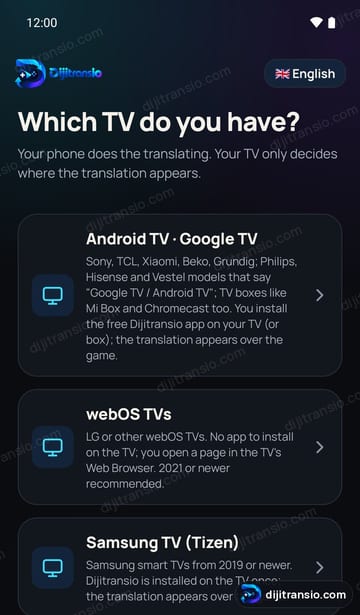
- The first screen asks Which TV do you have?, with a short note on how it works below. Choose your TV: Android TV · Google TV, webOS TVs (LG), Samsung TV (Tizen) or Translation on your phone. If you use a TV box or stick, choose Android TV · Google TV. If you're not sure, tap I don't know my TV's system.
- On the next screen, choose your console: PS5, PS4 or Xbox. On Samsung, Dijitransio is installed on the TV first, and the console is asked after that (Samsung TV setup).
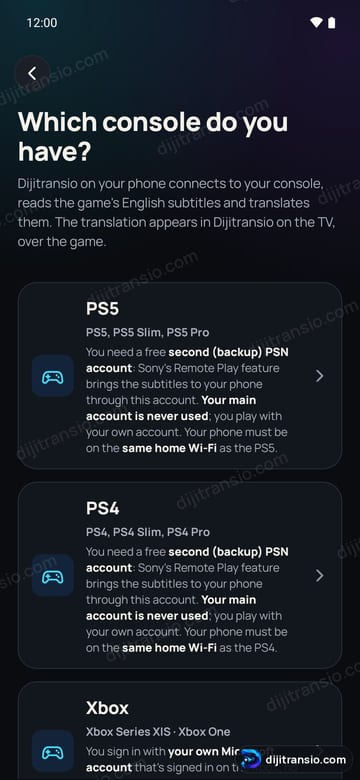
From here on, the app shows the steps for the TV and console you chose, using your console's menu names. The sections below follow the same order: first the TV (section 2), then the console (section 3 or 4), then checking that the translation shows on the TV (section 5).
2. Connect your TV
This section depends on your TV. Only do the steps for your own TV. If you chose Translation on your phone, you don't do anything on the TV; see the last heading in this section, then connect your console (section 3 or 4).
On TV Android TV: install Dijitransio on your TV too
Dijitransio on your phone translates, and Dijitransio on the TV writes the translation over the game. Both are the same app; the TV one is free and doesn't ask you to buy anything. The Android TV setup screen on your phone shows the steps of this section in order. At the top it asks Where are you installing Dijitransio?: choose On the TV itself; if you're installing it on a box or stick plugged into your TV, choose On a box plugged into the TV and follow the TV box steps.
Easiest: install it on the TV from your phone (on an Android phone). You don't type anything on the TV.
- On the Android TV setup screen in Dijitransio on your phone, tap Install on TV from phone. Dijitransio's page opens in Google Play.
- Tap the arrow next to Install (or Install on more devices), choose your TV from the list and tap Install.
- Within a few minutes, Dijitransio downloads to the TV by itself. If it's already installed on the TV, Play updates it. Then tap I installed it on the TV on your phone.
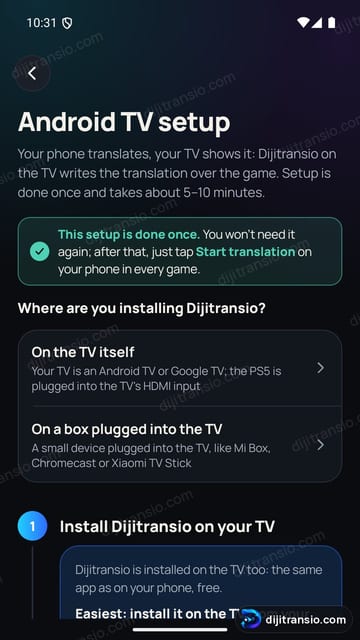
If your TV isn't in the list, the TV isn't signed in to the same Google account as your phone: in that case, install Dijitransio from the TV's own store. The iPhone has no Install on TV from phone button; if you use an iPhone, install it from the TV's store as well:
- Open the Google Play Store on the TV. On Google TV: Apps › Search for apps.
- Type Dijitransio, select Dijitransio in the results and press Install. If Dijitransio is already installed on the TV, press Update.
- Once it's installed, press Open.
If Dijitransio doesn't show up in the TV's Play Store, your TV may not be Android TV or Google TV, or its system may be too old. Send us your model on WhatsApp and we'll look into it together. In the meantime, you can choose Translation on your phone in the app and see the translation on your phone.
On TV Android TV: grant the screen permission
Dijitransio on the TV asks for a permission once, the first time you open it. This permission lets it show the translation over the game. If you use a TV box or stick, this permission isn't asked; instead, the question Is this device a TV box? appears (TV box). Some TVs that don't show their HDMI inputs to apps ask this question too: if you installed Dijitransio on the TV itself, choose No, this is a television (the preselected button is Yes, this is a box), and the permission screen comes next. If you chose wrong, fix it in Dijitransio on the TV under Help › Box or television?.
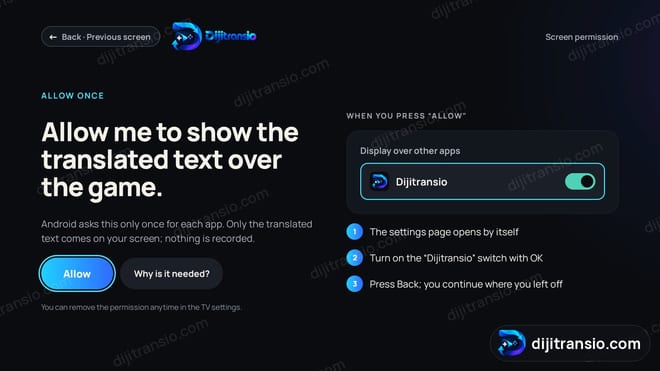
- On the TV, press Allow. Android's settings page opens.
- Find Dijitransio in the list and press OK; its switch turns on.
- Press the Back button on the remote.
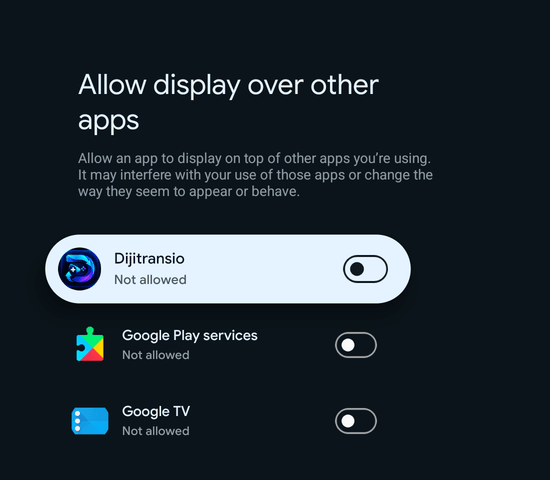
If the permission page doesn't open, grant the permission in the TV's settings: it's usually under Apps › Special app access › Display over other apps; menu names vary slightly by brand. With this permission, Dijitransio only draws the translated text; it doesn't record your screen or send it anywhere. Some TVs never grant this permission (it's missing from the settings or won't turn on): then press Back on the remote to skip the permission screen, and the QR and code screen appears. At the test text in section 5, tap No, I didn't, then Try the other method on the phone: Dijitransio on the TV opens the console's picture on its own screen and writes the translation over it.
On TV Android TV: QR code and 6-digit TV code
After the permission, the TV shows a QR code and, next to it, a large 6-digit TV code. The code is valid for 10 minutes, and when it expires the TV shows a new one by itself; if you've waited a long time, press New code on the TV. Leave this screen open and go to your phone. If a phone has already been connected to this TV, the code doesn't appear by itself: in Dijitransio on the TV, press Phones › Add phone.
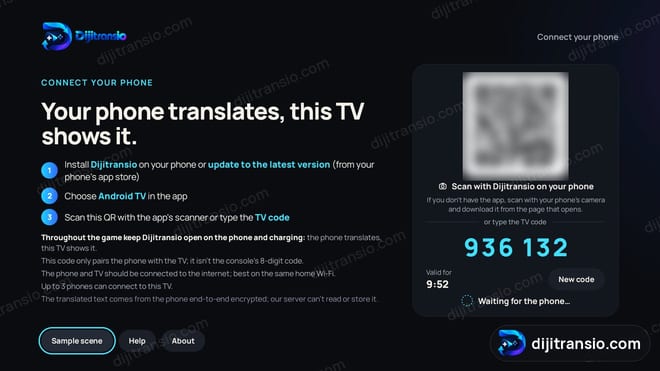
On phone Android TV: scan the QR or enter the TV code
When the QR and code appear on the TV, tap The QR and code are showing on the TV on the phone's setup screen. Then either way works:
- In the app: in Dijitransio on your phone, tap Scan the QR on the TV and point the camera at the code on the TV. If you didn't allow camera access or the camera doesn't open, enter the 6-digit TV code on the same screen; it connects by itself once you've entered the six digits.
- With your phone's camera: point the camera at the code on the TV and tap the link that appears. On Android, if Dijitransio is installed, the app opens straight to this step and asks Connect to this TV?; tap Connect. On iPhone, or if the app isn't installed, a page opens and shows the TV code: open Dijitransio, choose Android TV · Google TV and enter the code.
Before you scan or enter the code, you can type a name in the Your name shown on the TV box on the same screen (like “Sarah's phone”); if you leave it empty, your phone's model is shown. Once connected, your phone shows TV connected ✓ and your phone's name appears on the TV.
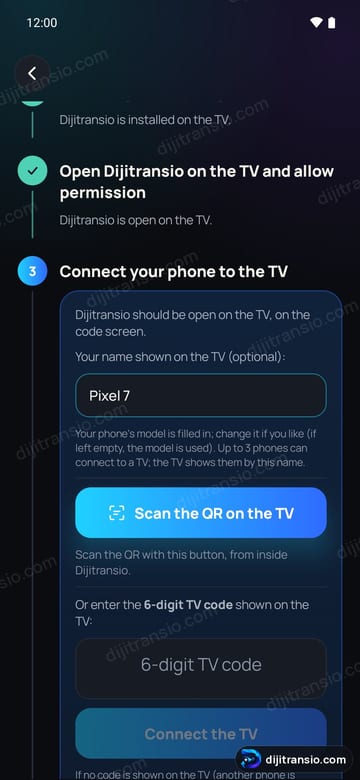
If the QR won't scan, or your phone says the QR isn't a Dijitransio setup QR, the Dijitransio on your phone is an old version: update it from Google Play or the App Store, then scan again.
Your phone and TV just need to be online; it's best if both are on the same home Wi-Fi. If your phone doesn't appear to be on the same network as the TV (for example, it's on mobile data), the TV asks whether to let this phone connect. If you entered the code yourself, press Yes. If you didn't, press No; nobody else can connect to your TV. If this TV already has 3 phones, see section 11.
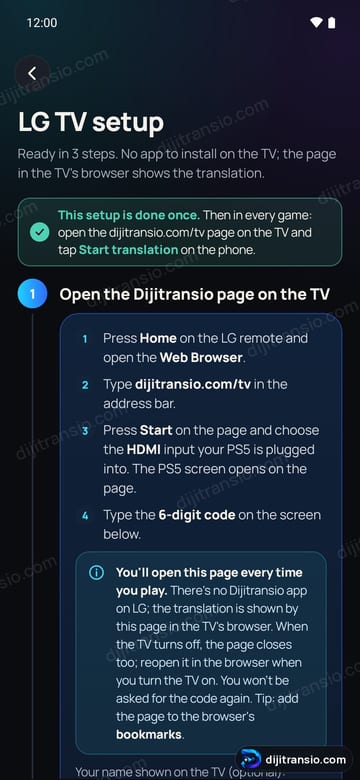
On TV LG: open dijitransio.com/tv in the browser
On LG, you don't need to install an app on the TV. The dijitransio.com/tv page, kept open in LG's Web Browser, writes the translation over the console's picture. The console's picture plays inside the page, from the HDMI input. In a test on a 2025 LG model, no extra controller lag was noticed; results may vary by TV model.
It works on most LGs from 2016 on (webOS 3 and newer); it doesn't work on 2015 and older (webOS 2). If you're not sure, ask us about your model on WhatsApp. If the picture doesn't open in the page at all, set the TV type on your phone to Translation on your phone (tap Change on the TV · console card at the top of the home screen); the translation then appears on your phone's screen in large text.
- Turn on the console.
- Press the Home button on the LG remote and open the Web Browser.
- Type dijitransio.com/tv in the address bar and open it.
- Press Start on the page. You move with the remote's arrow keys and select with OK.
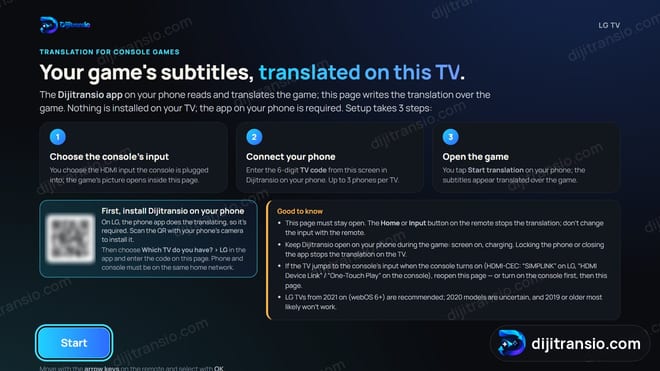
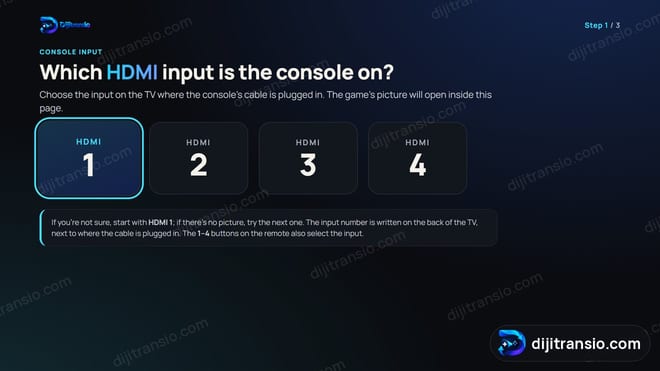
On TV LG: choose the console's HDMI input
The page asks which HDMI input on the TV your console is plugged into. If you don't know, start with HDMI 1; the input number is written on the back of the TV, next to where the cable is plugged in. The 1–4 buttons on the remote also select the input.
Once you choose the input, the console's screen opens inside the page and a sample translated line appears at the bottom. The page asks Is the console's picture showing?: if you see the console's screen, press Yes, it's there; if you see a black screen or something else, press Try another input.
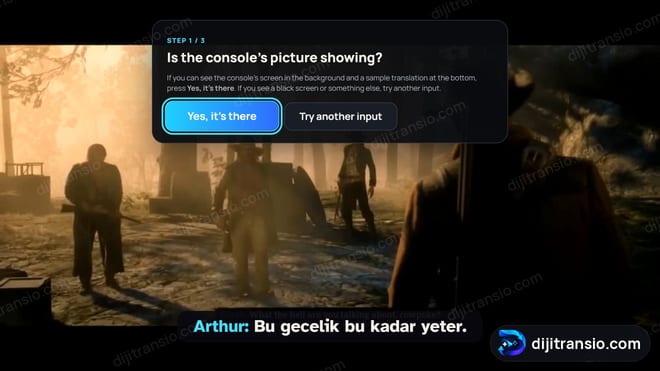
This question is LG's compatibility test: if you can see the console's screen and the translated line below it, your LG is compatible. If no picture comes through, simplify the console's video output: turn off 120 Hz and HDR, and set the resolution to 4K 60 or 1080p (on PS5, ). Even if the page says it couldn't open the picture, if you can see the console's screen behind it, press I can see the picture.
On phone LG: enter the 6-digit code from the TV
When the picture appears, a 6-digit TV code shows on the TV. On the LG TV setup screen in Dijitransio on your phone, type this code into the 6-digit TV code box; once you enter all six digits, it connects by itself. The code is valid for 10 minutes; when it expires, the TV shows a new one by itself. As soon as the phone connects, the window on the TV closes by itself.
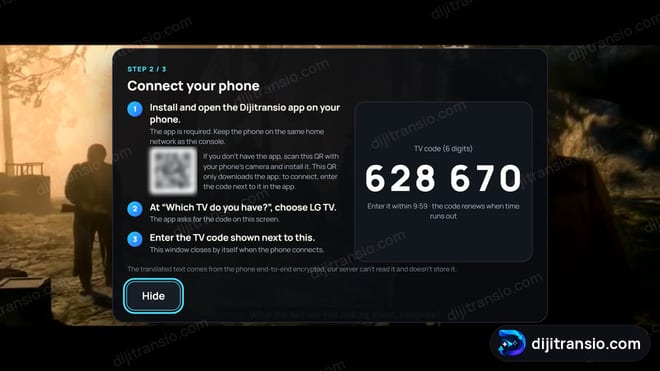
If the phone doesn't appear to be on the same home network as the TV, the TV asks whether this phone may connect. If you typed the code yourself, press Yes.
On TV Samsung: install Dijitransio on your TV once
On Samsung TVs from 2019 or newer (Tizen), the Dijitransio app that you install on the TV once shows the translation over the game. The installation is done by Dijitransio on an Android phone and takes about 10 minutes; if your phone is an iPhone, an Android phone from a family member or friend is enough. Installation is free, and the phone that does the installation isn't asked to buy a plan.
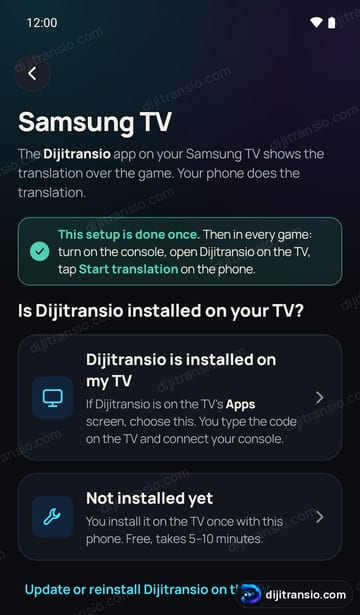
- On phone On your phone, choose Samsung TV (Tizen) and tap Not installed yet.
- On phone The phone finds the TV on the same Wi-Fi. On TV You turn on Developer Mode on the TV once, then On phone sign in with your Samsung account; the phone installs Dijitransio on the TV by itself. All five steps, with screenshots, are on the Samsung TV setup page.
- On phone In the last question, you choose which phone will do the translation: This phone or Another phone (including iPhone).
- On TV Turn on the console first, then on the TV open Dijitransio from Apps and choose the console's HDMI input. On phone Type the 6-digit TV code shown on the TV into the phone that will do the translation.
If Dijitransio is already installed on your TV (installed with another phone), choose Dijitransio is installed on my TV on your phone and type the TV code directly. You get the plan on the phone that will do the translation while you play.
On TV TV box: install Dijitransio on the box
If you use an Android TV or Google TV box or stick plugged into your TV or monitor (such as Mi Box, Mi TV Stick, Chromecast with Google TV or Google TV Streamer), you install Dijitransio on the box. A box has no HDMI input, so the console's picture doesn't pass through it. Instead, the box opens your PS5 or PS4 game over your home network with the console's own Remote Play feature, plays it full screen on its own screen and shows the translation on top. Your controller stays connected to the console, and the game's sound comes from the box too. The box plays only PS5 and PS4; with Xbox, choose Translation on your phone.
- On phone On your phone, choose Android TV · Google TV and your console. At the top of the setup screen, the question Where are you installing Dijitransio? appears: choose On a box plugged into the TV; the title becomes TV box setup. Install Dijitransio on the box with Install on the box from your phone (choose your box in the list on Google Play) or from the box's Google Play Store, then tap I installed it on the box on the phone.
- On TV Open Dijitransio on the box. On first launch it asks Is this device a TV box?: press Yes, this is a box. No screen permission is asked on a box.
- On TV A QR code and a 6-digit TV code appear on the box. On phone On your phone, tap I see the QR and code on the box, then scan the QR or type the code; it's the same as the Android TV step.
- On phone Connect your console as described in section 3. To see the code on the console's screen, switch the TV to the console's input with the remote; when you're done, switch back to the box's input.
- On phone In the last step of setup, instead of the test text the phone shows the Game on the box information: tap Got it.
If the phone shows the red warning Dijitransio on the box thinks it's a television, the game won't appear on the box's screen: update Dijitransio on the box, on the box tap Help › Box or television? › Yes, this is a box, then tap I fixed it on the box, continue on the phone. Connect the box and the console to the same router; connect the box with a cable if you can, otherwise to 5 GHz Wi-Fi. Suitable boxes, what to do each time you play and how to fix the messages on the box are on the TV box setup page.
On phone Translation on your phone: nothing is installed on the TV
On TVs that aren't Android TV, LG or a Samsung from 2019 or newer (such as Vestel, Philips, Hisense with VIDAA, TiVo, Samsungs older than 2019 and older LGs), and on monitors and projectors, you choose Translation on your phone on your phone. If an Android TV or Google TV box is plugged into the screen, the TV box route shows the translation over the game instead. Nothing is installed on the TV. Your phone connects to your console (PS5, PS4 or Xbox) using the console's remote play feature, reads the game's English subtitles and translates them; the translation appears on your phone's screen in large text on a black background. You put the phone next to the TV: the game on the TV, its translation right beside it.
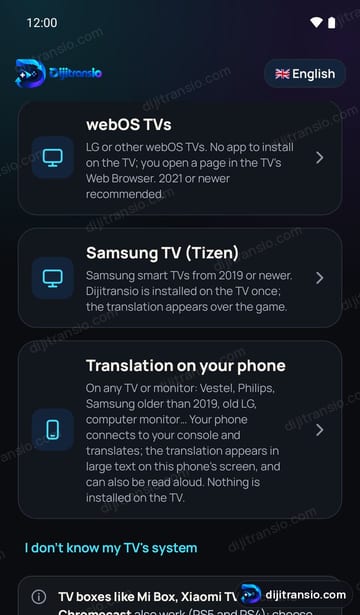
- On your phone, on the Which TV do you have? screen, scroll down and choose Translation on your phone.
- Choose and connect your console: section 3 for PS5 or PS4, section 4 for Xbox. With this option too, your phone connects to the console through remote play; PS5 and PS4 need a second PSN account.
- Turn on English subtitles in the game (section 7), then tap Start translation on your phone. The translation screen opens and stays open throughout the game. If you place the phone horizontally, the text gets even bigger.
- Plug the phone into a charger and place it next to the TV, where you can see it comfortably.
The buttons on the translation screen fade after a while without being touched (so they don't leave a mark on the screen); touch the screen and they become clear again. Stop turns the translation off. The text color and the speaker name are set in Subtitle look on the phone.
With this option, the translation of the dialogue, that is, of the game's subtitles, is shown. Full-screen translation, which translates quest, item, map and menu text, isn't available with this option.
On phone Read aloud (with Translation on your phone)
If you like, your phone can also read the Turkish subtitles on its screen aloud. Read aloud uses Turkish voices, so it works only when the subtitle language is Turkish; when the subtitle language is Arabic, this option doesn't appear in the app. On your phone, tap Read aloud on the app's home screen or the speaker button on the translation screen.
- How should dialogue come?: Text (no voice), Text + voice or Voice only (no text on screen; if the voice can't play, the text comes back by itself).
- Voice: a male and a female Turkish voice. The voice is downloaded once, the first time (about 60 MB); after that it works offline, and the speech is generated on the phone itself.
- Speech rate: from 0.8× to 1.7×.
- Speaker name: read it or don't read it.
- Listen: instantly tries the voice and rate you chose.
Read aloud reads only the dialogue (the subtitles). It doesn't skip lines and doesn't read the same line twice; if it falls behind the dialogue, the voice speeds up a little by itself. If headphones or a Bluetooth speaker are connected, the sound comes from there.
3. Connect your PS5 or PS4
This section is the same for every TV and is done in Dijitransio on your phone. If your console is an Xbox, go to section 4. The app shows each step with your console's menu names; this guide uses the English menu names.
First, understand the two accounts
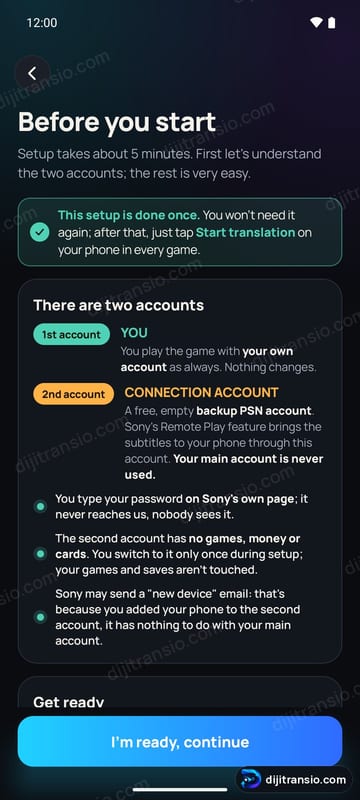
On PS5 and PS4, Dijitransio works with two PlayStation (PSN) accounts. Everything in the setup is based on this split:
- First account = your own account. The usual account you play your games with.
- Second account = backup account. It's free to create and doesn't need PS Plus. Sony's Remote Play feature uses this account in the background to bring the game's subtitles to Dijitransio.
You always play with your first account. You switch to the second account only once, during setup; your games, saves and trophies aren't touched. Your controller stays connected to the console.
On phone No second account? Create one for free
- On the Before you start screen in Dijitransio on your phone, tap Create an account on Sony's site; Sony's account creation page opens.
- Enter an email address different from your own (first) account's.
- Enter your date of birth and a password, then confirm the account with the link in the email Sony sends you. The account is free.
On console Add the second account to the console
If you have a game open, save first: in these steps you'll switch users on the console.
| PS5 | PS4 |
|---|---|
| 1. Press the PS button on the controller; in the control center at the bottom of the screen, choose your profile picture. | 1. Press and hold the PS button on the controller; from the menu that opens, choose Power › Switch User. |
| 2. Choose Switch User › Add User › Get Started. | 2. Choose New User › Create a User. |
| 3. Sign in with your second account's email and password. | 3. On the PlayStation Network sign-in screen, sign in with your second account's email and password. |
Sign in to PlayStation Network with your second account's email and password, not as a guest; just creating a local user isn't enough. Don't delete the second account from the console when setup is finished: Remote Play uses it every time you play.
On phone The Before you start screen
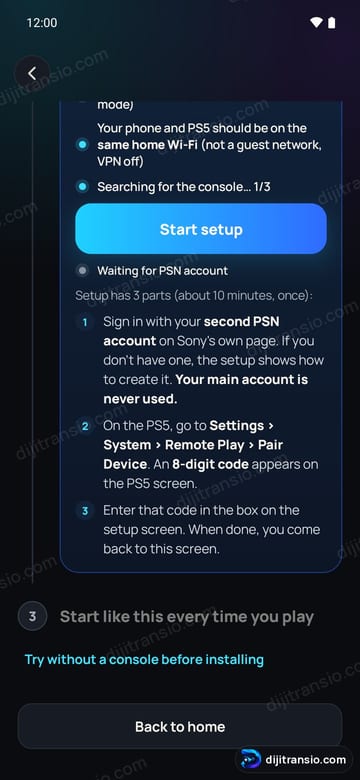
In the console step of the setup screen (step 2 on LG, step 4 on Android TV), tap Start setup; the console setup opens with the Before you start screen. It shows the difference between the two accounts and the checklist once more: the console fully on, the phone on the same home Wi-Fi as the console, the second account ready, the controller at hand. When you're ready, tap I'm ready, continue at the bottom.
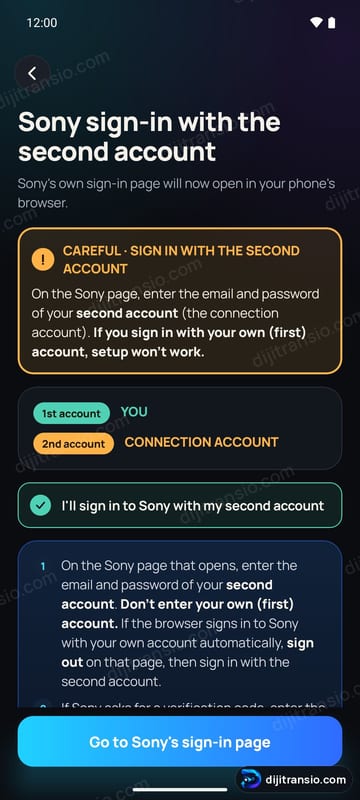
On phone Sony sign-in with the second account
- First tick I'll sign in to Sony with my second account; the button doesn't work until you do. Then tap Go to Sony's sign-in page, and on the Sony account sign-in screen that opens, tap Open Sony's sign-in page. Sony's own sign-in page opens in your phone's browser (such as Chrome on Android, Safari on iPhone).
- Enter your second account's email and password; don't enter your own (first) account. If the browser signs in to Sony with your own account automatically, sign out on that page, then sign in with the second account.
- If Sony asks for a verification code, enter the code sent to your email or phone.
- When sign-in finishes, the screen stays completely white, with no text on it. This is normal: you're signed in. Now send this white page to Dijitransio.
You type your password only on Sony's page; in the address bar you'll see a site name ending in sony.com or sonyentertainmentnetwork.com. Your password never reaches us and isn't stored.
On phone Send the white page to Dijitransio
- On Android, Share is easiest: tap the browser's Share button (in Chrome: ⋮ at the top right › Share) and choose Dijitransio in the list that opens. Dijitransio opens by itself and continues. If you don't see it in the list, scroll the list sideways or down.
- On Android, if you can't find Share, use Copy: tap the address bar at the very top of the white page once and copy the address, then go back to Dijitransio. Dijitransio sees the copied address by itself and continues; if it doesn't, paste it into the box on the screen and tap Continue.
- On iPhone: touch and hold the address bar › Copy, then go back to Dijitransio by tapping Dijitransio at the top of the screen. In the window that opens, tap Paste.
The address carries a one-time sign-in code that's valid for only a few minutes; your password isn't in it. If the time runs out, open Sony's sign-in page again and sign in again.
The top of the next screen shows Sony sign-in done and the name of the account you signed in with. This name must be your second (backup) account. The screen asks IS THIS YOUR SECOND ACCOUNT?: if it is, tap Yes, this is my second account (the console steps open only then); if it's your own account, tap No, I signed in with my own account, then Sign in again with the second account.
On phone Your phone finds the console on your home network
Your phone searches for the console on your home network by itself; if it finds more than one console, you choose the one to pair. If it can't find it:
- Is the console on or in rest mode? To be found in rest mode, the setting in section 10 must be on.
- Is your phone on the same home Wi-Fi as the console? A guest network, mobile data or an active VPN hides the console.
- If client isolation (AP isolation) is on in your router, or if you have a second router or a range extender at home, connect the phone and the console to the same device; connecting the console to the router with a cable also solves it.
- iPhone asks for Local Network permission on the first search; tap Allow. If you didn't allow it before, must be on.
- If it's still not found, type the console's IP address manually. On PS5 it's on the IPv4 Address line in , on PS4 in (e.g. 192.168.1.20).
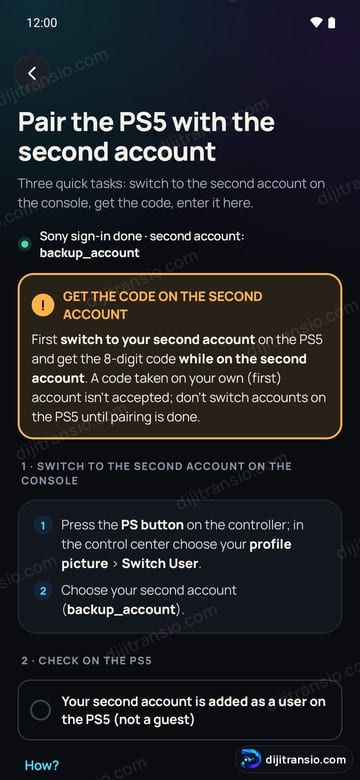
On console Switch to the second account on the console
| PS5 | PS4 |
|---|---|
| 1. Press the PS button on the controller; in the control center, choose your profile picture › Switch User. | 1. Press and hold the PS button on the controller › Power › Switch User. |
| 2. Choose your second account. | 2. Choose your second account. |
On PS5, if your second account isn't in the list, add it as a user, not as a guest, and sign in to PlayStation Network (see Add the second account to the console above). With a guest account the PS5 pairs, but it refuses the connection when you start translation (80108b26).
You need to see the console's screen. On Android TV, the console's screen isn't visible while Dijitransio is open: switch to the console's input with the Source or Input button on the TV remote. With a TV box, you also switch the TV to the console's input with the remote. On LG, the console's screen is already inside the page; on Samsung, it shows behind Dijitransio.
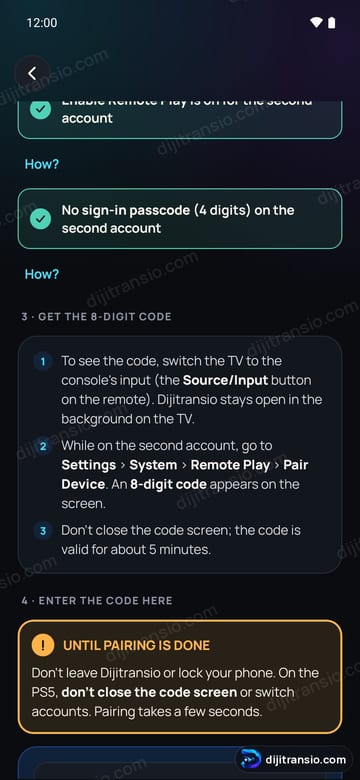
On console Get the 8-digit console code
| PS5 | PS4 |
|---|---|
| 1. While on the second account, go to . | 1. While on the second account, first select Activate in . |
| 2. Enable Remote Play must be on. This setting is separate for each user: it must be on (checked) for your second account too. | 2. Go to ; Enable Remote Play must be checked. |
| 3. Select Link Device. | 3. Select Add Device. |
| 4. An 8-digit code appears on the screen. Don't close the code screen; the code is valid for about 5 minutes. | 4. An 8-digit code appears on the screen. Don't close the code screen; the code is valid for about 5 minutes. |
In short: on PS5 Settings › System › Remote Play › Enable Remote Play and Link Device; on PS4 Settings › Account Management › Activate as Your Primary PS4, then Settings › Remote Play Connection Settings › Add Device. If your console uses another language, the same items are in the same places.
On phone Enter the code in the app
On the phone's Pair the PS5 with the second account screen, before the code box, the 2 · Check on the PS5 section has checkboxes: your second account is added as a user on the PS5 (not a guest), Enable Remote Play is on for the second account, and the second account has no sign-in passcode (4 digits); on PS4 also Activate as Your Primary PS4 is done on the second account. Check each one on the console and tick it; if you don't know how, tap How? under it. The 8-digit code box doesn't open until every box is ticked. Then type the code you see on the console into the 8-digit code box on your phone and tap Pair. Don't switch accounts on the console until pairing finishes. After “Pairing with PS5… (a few seconds)”, the phone moves on to the next step.
If the code isn't accepted, close the code screen on the console, select Link Device again (on PS4, Add Device) and enter the new code. The most common reason is that the code was taken while on the first account.
On console Switch back to your own (first) account
| PS5 | PS4 |
|---|---|
| 1. Press the PS button › profile picture › Switch User. | 1. Press and hold the PS button › Power › Switch User. |
| 2. Choose your own (first) account. | 2. Choose your own (first) account. |
If the controller doesn't respond, press the PS button and choose your own (first) account. Then tap I switched to my own account on your phone. The PS5 ready ✓ screen that follows shows the two recommended console settings (section 10); tap Continue.
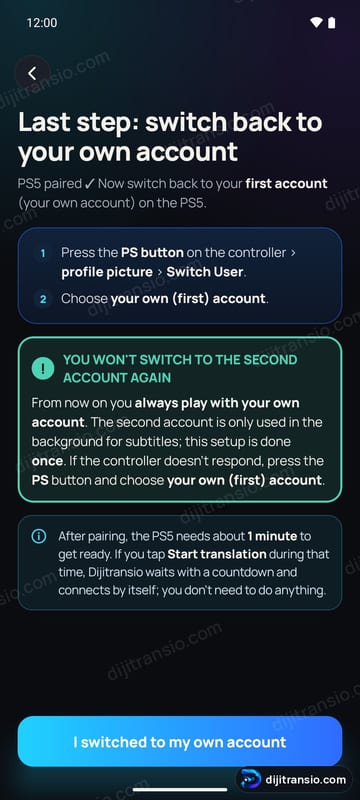
From now on you always play with your own account; Remote Play uses the second account in the background, and you never need to switch to it again.
After pairing, the console needs about 1 minute to get ready. If you tap Start translation during this time, Dijitransio waits with a countdown and then starts by itself; you don't need to do anything.
4. Connect your Xbox
This section is the same for every TV and is done in Dijitransio on your phone. If your console is a PS5 or PS4, go back to section 3. Xbox needs an Android phone (Android 12 or later recommended); if the Xbox option doesn't appear on your iPhone, do the setup with an Android phone.
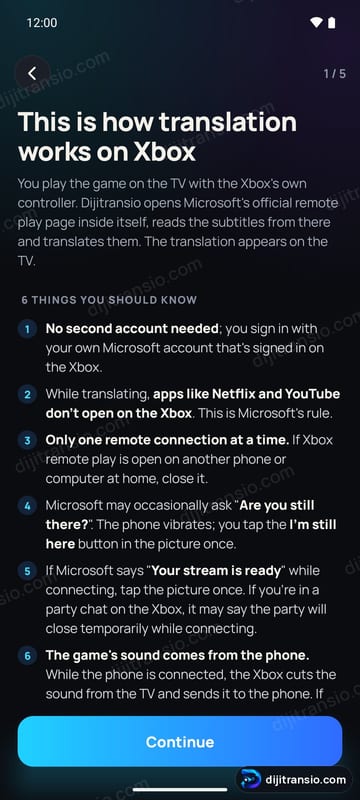
How translation works on Xbox
You play the game on the TV with the Xbox's own controller. Dijitransio on your phone opens Microsoft's official remote play page inside the app; the subtitles reach your phone through that page, and Dijitransio translates them. The translation appears on the TV. (If you chose Translation on your phone, the translation appears on your phone's screen.)
What you should know:
- No second account needed. You sign in with your own Microsoft account, the one signed in on the Xbox.
- Only one remote connection at a time. If Xbox remote play is open on another phone, tablet or computer at home, close it.
- While remote play is running, video apps like Netflix and YouTube won't open on the Xbox; this is Microsoft's rule.
- Microsoft may occasionally ask “Are you still there?” The phone vibrates; tap the I'm still here button in the picture once and translation continues where it left off.
- There's no small window on Xbox. Keep Dijitransio in front on your phone; if you leave the app, Microsoft's page stops and translation is cut off.
- Your controller stays connected to the Xbox; don't connect a controller to the phone. The game's sound comes from the phone: while the remote connection is on, the Xbox cuts the sound from the TV; connect headphones or a Bluetooth speaker to the phone. If you'd rather hear the sound from the TV, on the Xbox go to Settings › General › Volume & audio output › Additional options and untick Mute speaker audio when headset attached; then choose Sound off in Dijitransio, otherwise the sound comes from both the TV and the phone. You only do this once.
On console 3 settings on the Xbox (once)
Menu names may differ slightly depending on your Xbox's software version.
- Remote features: Xbox button › Profile & system › Settings › Devices & connections › Remote features › make sure Enable remote features is checked.
- Power mode Sleep: Settings › General › Power options › Sleep. For the Xbox to be turned on remotely while it's off, the power mode must be Sleep.
- HDR off: Settings › General › TV & display options › Video modes › turn off Allow HDR10 and Auto HDR. With HDR on, the remote picture reaches the phone very dark and the subtitles can't be read. The original Xbox One model has no HDR; skip this step.
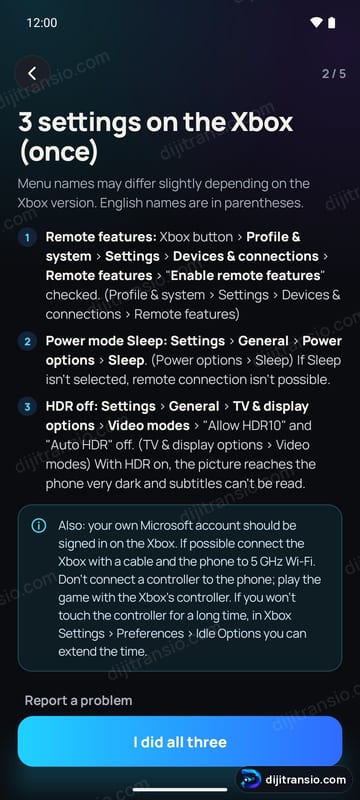
Make sure you're signed in on the Xbox with your own Microsoft account. The Xbox shouldn't ask for a password or PIN when signing in: Settings › Account › Sign-in, security & PIN › Change my sign-in & security preferences › Customize: no PIN when signing in, PIN for purchases (don't choose “No barriers”: purchases would also need no password). If possible, connect the Xbox to your router with a cable and the phone to 5 GHz Wi-Fi.
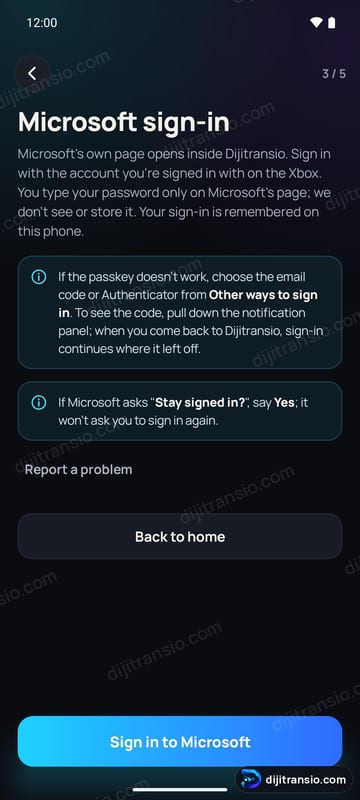
On phone Sign in with your Microsoft account
Microsoft's own sign-in page opens inside Dijitransio. Sign in with the account you're signed in with on the Xbox. You type your password only on Microsoft's page; we don't see it or store it. Your sign-in is remembered on this phone; Microsoft may occasionally ask you to sign in again.
- If the passkey doesn't work, choose the email code or Authenticator from Other ways to sign in. To see the code, you can pull down the notification panel or switch to your email app and come back; the sign-in page doesn't close.
- If Microsoft asks Stay signed in?, tap Yes.
On phone Test connection: choose your Xbox
When sign-in is done, Microsoft's page inside Dijitransio makes a test connection to your Xbox, and Dijitransio checks that the picture comes through and isn't too dark. It takes about a minute; the Xbox should be on or in Sleep mode. If your account has only one Xbox, Dijitransio picks it for you; if there are several, choose your Xbox from the list.
- If your Xbox shows Unavailable (remote features off) under it, either setting 1 above isn't on or the Xbox is fully off (power mode isn't Sleep).
- If Microsoft says Your stream is ready or Tap to start playing, tap the screen once.
- If you're in a party on the Xbox, Microsoft says your party session will end temporarily when you connect remotely; you can rejoin once you're connected.
5. Does the translation appear on the TV?
Once the console is connected, the phone tests once whether the translation appears over the game on the TV. This test is free and happens before you choose a plan, so you see right from the start whether your TV works. On LG and Samsung with PS5 and PS4, the TV's Is the console's picture showing? question takes the place of this test. With Translation on your phone and with a TV box there's no such step: with a TV box, the phone shows the Game on the box information instead.
On TV Android TV: test text
- Turn on the console. Have Dijitransio open on the TV.
- On the phone, tap Test on TV.
- The TV switches to the console's HDMI input by itself and shows a sample translated line over the game for about 20 seconds (the sample line is in Turkish).
Let's call it a night.
Arthur: Bu gecelik bu kadar yeter.

If the TV doesn't know which input the console is on, a question like Which HDMI input is the PS5 on? appears on the TV; choose the input the console's cable is plugged into, on the TV or on the phone, and tap Try again on the phone. On some TVs the input's name also shows PlayStation 5 or Xbox; if it doesn't, check the number of the input the cable is plugged into at the back of the TV. The TV remembers the input separately for each console; to change it later, press Change HDMI input in Dijitransio on the TV, or tap the TV row on the phone's home screen.
Some TVs don't show their HDMI inputs to apps; then the TV can't switch to the input by itself and the test text doesn't appear. First switch to the console's input with the remote's Source or Input button, then tap Try again on the phone: the test text appears over the game. While playing, you switch to the input with the remote yourself; the translation still appears.
On phone Android TV: test result
On the phone, answer the question Did you see the translated text over the game on the TV?
- Yes, I saw it: setup is done. The last screen tells you what to do each time you play.
- No, I didn't: the phone guides you based on the cause. Check in order: Is the console on? Is the TV on the console's input (you can also choose the input from the phone)? Was the screen permission given to Dijitransio on the TV (section 2)? If the TV won't grant it, tap Try the other method on the phone: the game opens inside Dijitransio on the TV and the translation appears over it. If you installed Dijitransio on an Android TV box or stick plugged into your TV, in Dijitransio on the box press Help › Box or television? and choose Yes, this is a box (TV box setup). If the text still doesn't appear, this TV may not let apps draw over the console's picture: send us the model on WhatsApp; meanwhile you can switch the TV type to Translation on your phone (Change on the TV · console card on the home screen) and see the translation on your phone.
If you want to test later, tap Not now, try later; you can start it again from the TV row on the phone's home screen. You can also choose the console's HDMI input there.
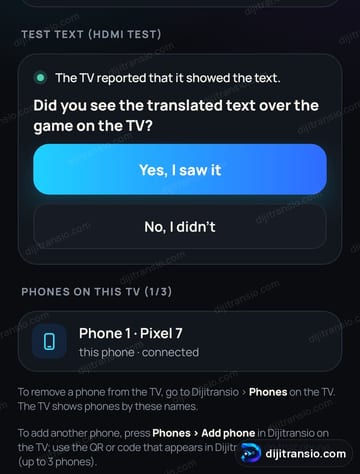
On TV LG and Samsung: picture test
On PS5 and PS4, the Is the console's picture showing? question in section 2 takes the place of this test: if the console's screen and the sample text under it appeared on the LG page or in Dijitransio on Samsung, your TV is ready. On Xbox, Dijitransio sends a test text to the TV after the test connection; if it appeared on the TV, your TV is ready.
6. First translation: Start translation on the phone
- Turn on the TV and the console. On Android TV, open Dijitransio on the TV; with a TV box, switch the TV to the box's input and open Dijitransio on the box; on LG, open dijitransio.com/tv in the browser; on Samsung, turn on the console first, then open Dijitransio from Apps on the TV.
- Open the game; English subtitles must be on in the game (section 7).
- On the home screen of Dijitransio on your phone, tap Start translation.
The first time you tap Start translation, the phone may ask Translate quest and item text too?: choose Yes, turn on and start or Subtitles only (you can change it later on the home screen). The first time, you choose your plan; plans and their terms appear in the app and in the store (Google Play or App Store). The plan is bought on the phone; Dijitransio on the TV never asks for a purchase. The plan is valid on the devices of the store account you bought it with: the same Google account on Android, the same Apple Account on iPhone. You can also link 1 more Android device to your plan (section 11). If you bought a plan in Dijitransio on the TV before, that plan is valid: you don't pay again on the phone while translating on that TV.
Then the phone shows the Your phone while playing rules once (section 8); tap Got it, start.
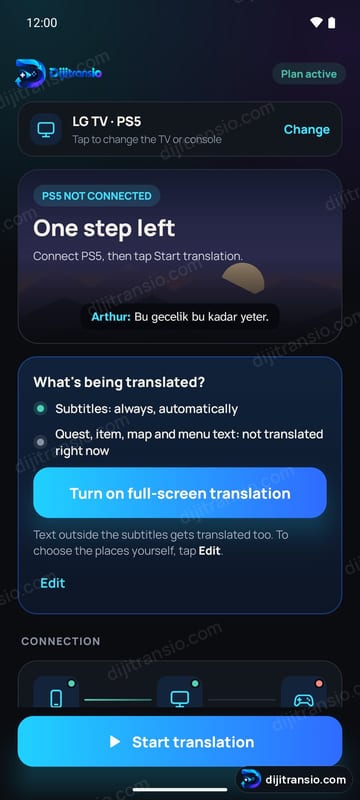
The badge at the top of the home screen tells you what's missing: WAITING FOR TV if Dijitransio on the TV or the LG page isn't open, PS5 NOT CONNECTED if the console isn't paired (PS4 NOT CONNECTED on PS4, CONSOLE NOT CONNECTED if no console has been chosen yet, TV NOT CONNECTED if no TV has been chosen yet). The What's being translated? card below it tells you what gets translated: subtitles are found and translated automatically; for quest, item, map and menu text, you tap Turn on full-screen translation on the card (section 12). In the Connection section at the bottom, you see the status of the phone, the TV and the console one by one.
The first time translation starts, the phone shows the We find the subtitles ourselves intro once; if you want quest and item text on the screen translated too, tap Turn on there; if not now, tap Later.
Your phone connects to your console over your home network using the console's remote play feature. If the console is in Rest Mode, the phone wakes it up; but an Android phone may not be able to wake a PS4: then turn on the PS4 with the controller and tap Start translation again. On Android TV, the TV switches to the console's input by itself and the translation appears over the game. If Dijitransio on the TV isn't in front at that moment, the TV doesn't switch by itself; a note like Switch to the console's input: HDMI 2 appears in the corner, so switch with the remote's Source or Input button. On LG the translation appears on the page in the browser, on Samsung in Dijitransio on the TV. With a TV box, the box, not the phone, connects to the console: the game opens full screen on the box's screen and the translation appears over it (First game on a TV box).
If you just paired your PS5 or PS4, the console takes about 1 minute to get ready; the phone waits with a countdown and connects by itself.

To stop translation, tap Stop translation on the phone; the TV shows Translation stopped on the phone.
7. Turn on English subtitles in the game
Dijitransio reads the English text on the screen and writes the translation in its place. So in the game:
- subtitles must be on and
- the subtitle language must be English.
In most games this setting is in the game's own menu, under Audio, Language or Accessibility. Making the game's subtitles bigger can make reading easier.
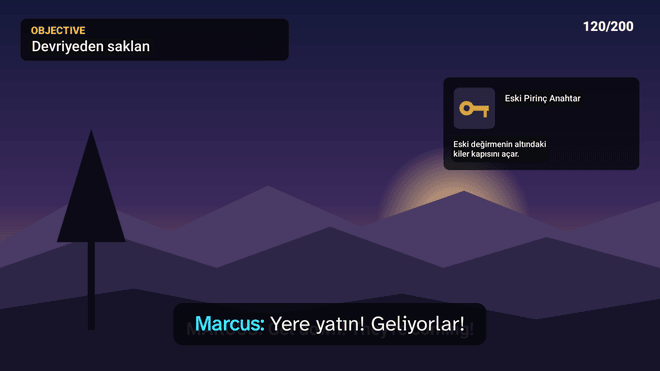
8. Your phone while playing
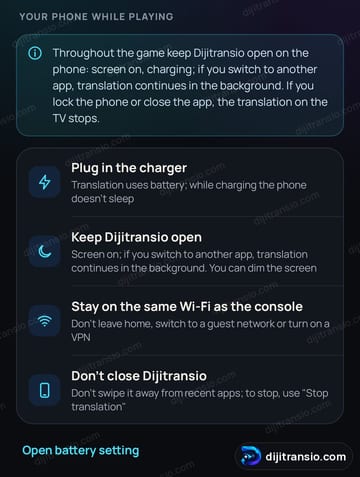
Your phone does the translation. Follow these rules and the translation won't cut out:
- Plug in the charger. Translation uses battery. Charge with a cable; if the phone gets hot, take off its case.
- Keep Dijitransio open. Don't close it or swipe it away from recent apps. On an Android phone there's no small window: if you switch to another app, translation continues in the background, but the phone may stop apps in the background; it's best to keep Dijitransio in front. On iPhone with PS5 and PS4, if you switch to another app, the console's picture continues in a small window in the corner and the translation keeps going to the TV; if you close the small window, translation stops and the TV shows Translation stopped on the phone. If the small window can't open on iPhone, translation stops; it starts again when you come back to Dijitransio. On Xbox and with Translation on your phone, keep Dijitransio in front.
- Don't lock it; dim it. Instead of turning the screen off, tap Dim screen on the phone: the screen goes dark and translation continues. With Translation on your phone there's no dimming, because the translation appears on the phone's screen; that screen stays on. If translation has stopped when you unlock and return to Dijitransio, tap Start translation again.
- Stay on the same Wi-Fi as the console. Don't leave home; don't switch to a guest network or mobile data; don't turn on a VPN. On Xbox, keep your home internet on. With a TV box, the box is the one connected to the console, so your phone only needs an internet connection; it's best on the same Wi-Fi as the box.
- On LG, keep the page open. While playing, don't press Home or Input on the LG remote: the page in the browser closes and the translation disappears. If it closed, open dijitransio.com/tv in the browser again.
- On Samsung, keep Dijitransio open. While playing, don't press Home or Source on the Samsung remote: Dijitransio goes to the background and the translation disappears. If that happens, open Dijitransio from Apps on the TV again.
- On a TV box, keep Dijitransio in front. While playing, don't press Home or Back on the box's remote: the game screen on the box closes and translation stops. If that happens, open Dijitransio on the box and tap Start translation on the phone again.
On Android phones, some brands stop apps running in the background to save battery. In your phone's battery settings, set Dijitransio's battery usage to unrestricted: the Open battery setting button in the app takes you there; the option is usually called Unrestricted or No restrictions, depending on the brand. A setting that switches to mobile data when Wi-Fi gets weak (its name varies by brand: “Smart Wi-Fi”, “Adaptive connectivity”, “Wi-Fi assistant” and so on) can break the console connection; turn it off while playing. On Android 13 and later, Dijitransio asks for notification permission: while translation is running it shows in the notification bar, and you can stop it from there too.
On iPhone, turn off Low Power Mode while playing; when it's on, translation slows down.
On Android TV, if you're going to switch to another app or input, tap Stop translation on the phone first; otherwise the translated text may appear there too.
9. Every time you play
Setup is done once. The pairing between your phone and TV, between your phone and console, and the HDMI input the TV remembers are permanent; your Microsoft sign-in is also remembered on the phone (Microsoft may occasionally ask you to sign in again). Each time you play there are only two steps:
| Your TV | Step 1 | Step 2 |
|---|---|---|
| Android TV / Google TV | Open Dijitransio on the TV | Tap Start translation on the phone |
| LG | Open dijitransio.com/tv in the TV's browser | Tap Start translation on the phone |
| Samsung | Turn on the console first, then open Dijitransio from Apps on the TV | Tap Start translation on the phone |
| TV box | Switch the TV to the box's input, open Dijitransio on the box | Tap Start translation on the phone; the game opens on the box's screen |
| Translation on your phone | Plug in the phone, put it next to the TV | Tap Start translation on the phone |
Subtitles are translated automatically. For quest and item text, tap Turn on full-screen translation on the home screen; the setting stays saved (with Translation on your phone, only dialogue is translated).
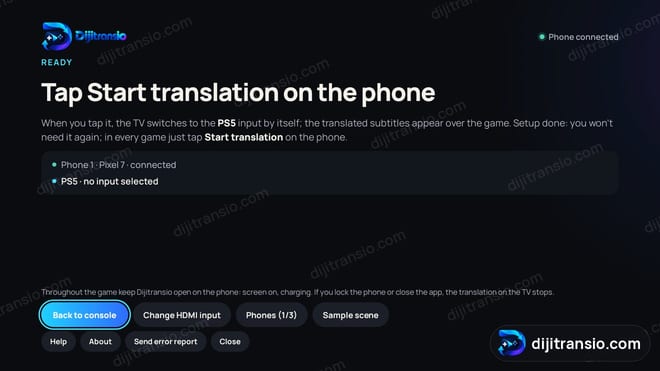
On Android TV, Dijitransio connects to the phone automatically when it opens, and the screen says Tap Start translation on the phone. When the TV turns off, Dijitransio on the TV closes too; open it again when you turn the TV on. On LG, the page remembers the input you used last and doesn't ask for a code. On Samsung, Dijitransio doesn't open by itself when the TV turns on; you open it after the console, and it doesn't ask for a code. On PS5 and PS4 you play with your own account and don't switch to the second account. If you don't use the TV and the phone together at all for 60 days, the pairing is deleted; then you connect the TV again (section 2).
10. Recommended console settings
Both are done once. Translation works without them too, but these settings make everything smoother. The Xbox settings are in section 4.
On console Let the console turn on from Rest Mode
| PS5 | PS4 |
|---|---|
| In , turn on Stay Connected to the Internet and Enable Turning On PS5 from Network. | In , check Stay Connected to the Internet and Enable Turning On PS4 from Network. |
This way, if the console is in Rest Mode when you start translation, your phone wakes it up automatically. An Android phone may not be able to wake a PS4; then turn on the PS4 with the controller before playing.
On console Hide the “Remote Play connected” box
On PS5, in , turn on Hide Remote Play Connection Status Pop-Up. This box appears on screen during the game and can cover the subtitle. The setting only hides the box; it doesn't affect the connection or the translation. PS4 doesn't have this setting; the box shows briefly and disappears.
11. Multiple phones, TVs or consoles
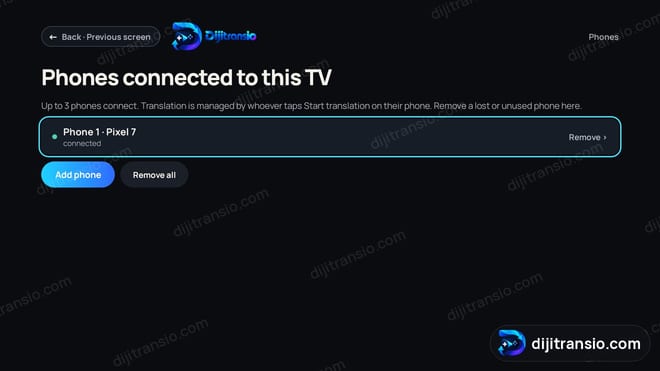
- Up to 3 phones can connect to one TV. To connect a new phone, press Phones › Add phone in Dijitransio on Android TV; a new QR and TV code appear. On LG, choose Add phone from the page's menu; on Samsung, from the menu of Dijitransio on the TV.
- Each added phone pairs the console once on its own: on PS5 and PS4, Sony sign-in with the second account and the 8-digit console code (you can use the same second account); on Xbox, its own Microsoft sign-in.
- The phone that tapped Start translation runs the translation. If you start while another phone is translating, your phone first shows the Another phone is translating screen (like “Sarah's phone is translating”). If you tap Take over and start, its translation stops, the translation goes to the TV from your phone, and that phone shows who took over; if you tap Cancel, nothing changes. The PS5 or PS4 may need about half a minute to close the previous connection; the phone waits with a countdown in the meantime. If Dijitransio on the other phone is an old version, it can't be stopped remotely: tap Stop translation on that phone, then start.
- Each phone starts with its own plan. On Android, a plan on the same Google account is valid; on iPhone, one on the same Apple Account. A plan bought earlier in Dijitransio on the TV is valid for the phones connected to that TV while translating on that TV.
- If you connect a fourth phone: if it's on the same home network, the phone unused for the longest time is removed from the list and a note appears on the TV. If it's on another network, the TV asks first and says which phone will be removed; it's removed only if you say Yes.
- You see the connected phones on the TV: on Android TV in Phones; on LG and Samsung in the Phones list in the menu of the page or of Dijitransio on the TV. From there you can remove one phone or all of them. A removed phone uses the new code on the TV to reconnect (Phones › Add phone on Android TV, Add phone in the menu on LG and Samsung).
- Multiple TVs: one phone can connect to up to 5 TVs (for example, the living room and the bedroom). For a new TV, tap the TV row on the phone's home screen › Add or choose another TV. You choose which TV to translate on in the same place; remove a TV you no longer use with Leave this TV.
- Multiple consoles: choose the console with Change on the console card on the phone's home screen; when you choose a new console for the first time, its setup opens. Android TV remembers each console's HDMI input separately.
On phone Use translation on another device
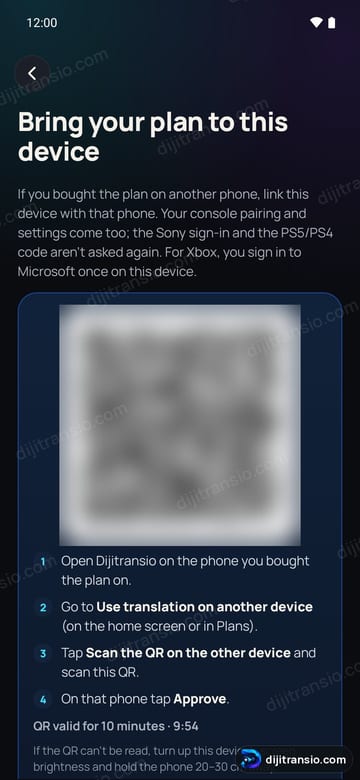
The phone you bought the plan on doesn't have to stay on for the whole game: an Android tablet or an old Android phone at home can do the translation instead. Your plan also stays valid on the phone you bought it on.
- Install and open Dijitransio on the other device. On the first screen (or in Plans or Help & about), tap My plan is on another phone: bring it to this device; a QR appears on the screen.
- On the phone you bought the plan on, open Dijitransio, go to Use translation on another device (on the home screen, in Plans or in Help & about), tap Scan the QR on the other device and scan the QR.
- Tap Approve on the phone. All your PS5 and PS4 pairings and settings move to the other device (that device remembers up to 4 consoles); Sony sign-in and the 8-digit code aren't asked again there. On Xbox, you do the Microsoft sign-in once on that device.
- Connect the TV once on the other device: Phones › Add phone on Android TV; on LG and Samsung, Add phone in the menu of the page or of Dijitransio on the TV; then the QR or TV code (section 2).
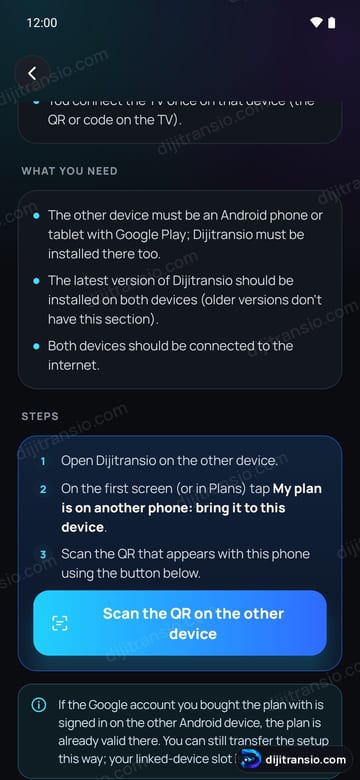
At most 1 Android device can be linked to your plan, and translation can run on only one device at a time. If Start translation is tapped on one while the other is translating, the Stop translation on that device option appears; translation on that device stops within half a minute at most, and the TV shows which device stopped it. Because the linked device and the phone you bought the plan on can't translate at the same time, translating on two different TVs at once with both needs a second plan. The linked device must be connected to the internet to start translation. You can remove the link any time from the phone you bought the plan on.
If the Google account you bought the plan with is signed in on the other Android device, the plan is already valid there; with the same QR route you only transfer the setup, and your linked-device slot isn't used up. To use it on an iPad or another iPhone, open Dijitransio on that device with the same Apple Account and tap Plans › Restore purchases; you do the console setup on that device. A plan bought on Google Play can't be used on iPhone or iPad.
12. Adjust it to your liking (optional)
All settings are in Dijitransio on your phone; there's no settings screen on the TV. The look is kept per phone: the TV applies the settings of the phone that's doing the translation.
On phone Subtitle look
Preset styles, position, text size, background, background opacity, text color and speaker name. Changes you make on the phone are previewed live on the TV; if another phone is translating on that TV at the time, your look is applied when you tap Start translation. With Automatic selected for text size, the translated text is the same size as the game's own subtitles and doesn't cover the game's screen.
On phone Subtitle area
The app finds where the subtitles are by itself (Automatic). If the game shows its subtitles in an unusual place, tap Choose manually and draw where the subtitles are with your finger on the game's real picture.
On phone Full-screen translation: quest, item, map and menu text
Subtitles are translated automatically; you don't need to do anything for them. If you also want to read quest, item, map, button prompt or menu text translated, tap Turn on full-screen translation on the home screen on your phone. The app also asks you the first time you start translation: answer Yes, turn on and start and it turns on.
- Whole screen (recommended): the whole screen is read except where the subtitles are; you don't need to choose any places.
- Only places I choose: you show the places where the text appears yourself (up to 3 places, together at most 85% of the screen). You place them with your finger on the game's real picture; since only those places are read, the translation arrives a little faster.
The translation box never goes beyond the area of the English text; it doesn't cover the icons next to it or the map. Full-screen translation turns on and off independently of subtitle translation.
On phone Translation engine and your own API key
The default Offline engine is free, included in your plan and runs on your phone. If you like, you can add your own DeepL, Microsoft Azure, Google Cloud, Gemini, OpenAI or Claude key in Translation engine on your phone; the key is stored on your phone, and you pay that service's fees directly to the service. If the internet drops or the service doesn't respond, translation switches to the offline engine automatically, so no subtitles are lost. Which services are free and where to get a key are on the translation services page.
Try without a console
Try without a console on your phone shows how the translation looks in a sample game scene; if your phone is connected to a TV, the translation appears on the TV too. If another phone is translating on that TV at the time, the demo appears only on your phone. Dijitransio on Android TV also has a Sample scene; it shows how the translation looks on the TV without a console or a phone.
If you used Dijitransio on your TV before
Dijitransio now does the translation on your phone, and the TV only shows it. Since phones are faster than most TVs, the translation arrives sooner. You switch over once:
- Update Dijitransio on the TV from Google Play and open it. A what's-new screen and a QR code appear.
- Update Dijitransio on your phone too, from Google Play or the App Store; if it isn't on your phone, install it. The old version doesn't recognize the new QR on the TV.
- On your phone choose Android TV · Google TV and your console, then scan the QR on the TV or type the TV code (section 2).
- Do the console setup once on your phone (section 3 or 4). The console has to recognize the phone separately, so signing in with your second account and the 8-digit console code are asked for again.
- Settings on the TV don't move to the phone: if you have your own API key, enter it again in Translation engine on your phone; set up the subtitle look and full-screen translation again on your phone.
If the plan you bought in Dijitransio on the TV is still valid, you won't be asked for a plan on your phone while translating on that TV; you don't pay again. If you don't have a phone or got stuck during the switch, message us on WhatsApp and we'll sort it out together.
Common sticking points
Tap the green WhatsApp bubble in the corner of the setup screens and the Need help with setup? card opens; the step you're on is added to your message automatically.
The two codes get mixed up. The TV code has 6 digits and connects your phone to the TV; it appears on the TV screen. The console code has 8 digits and comes from Link Device on PS5 or Add Device on PS4.
The phone doesn't recognize the TV's QR. Dijitransio on your phone is an old version: update it from Google Play or the App Store. In the meantime you can type the 6-digit TV code by hand.
The phone can't find the console. Is the console on or in rest mode? Is the phone on the same home Wi-Fi as the console? A guest network, mobile data or an active VPN hides the console. If client isolation (AP isolation) is on in your router, or if you have a second router or a range extender, connect the phone and the console to the same device. On iPhone, must be on. If the console still isn't found, type its IP address by hand (section 3).
The PS5 is paired, but refuses the session when you start translation (80108b26). On the PS5, Enable Remote Play is separate for each user: switch to your second account on the PS5 and turn the setting on for your second account too in . The second account should be added on the PS5 as a user, not as a guest, and be signed in to PlayStation Network. Then on your phone's home screen tap Connection › Pair PS5 again. If that doesn't help, fully turn the PS5 off and on again (not rest mode), wait a minute and start translation again.
The game doesn't open on the TV box. Is Dijitransio open and in front on the box? Are the box and the console connected to the same router? Did you answer Yes, this is a box to the question on the box? Fixes for each message on the box are on the TV box setup page.
The phone says “Open Dijitransio on the TV”, but it's open. Are the phone and the TV online? If Dijitransio on the TV was reset or reinstalled, the TV shows a new code: type that code on your phone.
On Android TV the translation doesn't appear over the game. Is the TV on the console's input? Is the screen permission on for Dijitransio on the TV (section 2)? Is translation running on the phone? Some TVs don't let apps draw over the HDMI picture; in that case set the TV type to Translation on your phone and read the translation on your phone.
The translation box isn't exactly over the English text. If the TV's picture size is set to an option that overscans (crops the picture at the edges), the box shifts. Set the picture size to an option that doesn't crop, such as “Fit to screen”, “Just Scan” or “Full Pixel”; the name varies by brand.
The translated text also shows over another app on the TV. On Android TV, if you're leaving the game for another app or input, first tap Stop translation on your phone.
Translation stops when the phone locks. That's normal: the phone does the translation. Instead of locking it, use Dim the screen. If translation has stopped when you unlock and return to Dijitransio, tap Start translation again.
The translation arrives late. A little delay is normal: the phone reads the text first, then translates it. If the delay is big, plug the phone in, turn off Low Power Mode on iPhone or battery saver on Android, and move the phone closer to the router or connect it to 5 GHz Wi-Fi. If the TV says Slow connection with the phone, the Wi-Fi is weak.
The TV turns itself off after a while. Because you play with the console's controller, nobody touches the TV remote for a long time; some TVs take this as “nobody's watching” and turn off. Turn off auto power off (energy saving or eco) in the TV's settings; where it is varies by brand.
The LG screen goes dark after a few minutes. On LG OLED models, the screen saver can turn on when the remote isn't pressed for a while. To prevent this, Dijitransio on your phone may ask to connect to the TV; approve the permission question that appears on the TV. If you missed it, the phone asks a few more times; if you declined it, reconnect the phone to the TV to be asked again. Also turn off Quick Start+ if it's on, under Settings › All Settings › General › Devices › TV Management (on older models Settings › General › Quick Start+). If it still goes dark, turn off automatic screen off in the TV's energy saving settings; where it is varies by model.
The translated text disappeared on LG. The page may have closed or the TV may have switched to another input. The Home or Input button on the LG remote leaves the page. Open dijitransio.com/tv in the browser again; the page remembers the last input. If the TV switches to the console's input by itself when you turn on the console (HDMI-CEC; SIMPLINK on LG), the page closes: turn on the console first, then open the page.
Translation stops on Xbox. With Xbox, Dijitransio must stay in front on the phone. If the “Are you still there?” question appears, tap I'm still here. If Microsoft closed the connection because there was no activity for a long time, check Settings › Preferences › Idle Options on the Xbox.
The Xbox connection fails. If your phone has a VPN, an ad blocker or private DNS turned on, turn it off. Connect the Xbox by cable or to 5 GHz Wi-Fi; the NAT type in the Xbox's network settings should be Open or Moderate.
My phone is an iPhone. No problem: download Dijitransio from the App Store. The steps are the same for PS5 and PS4; the first time the app searches for the console, tap Allow on the Local Network permission. If the Xbox option doesn't appear on iPhone, you need an Android phone for Xbox.
Error messages and fixes
| Where | Message on screen | What to do |
|---|---|---|
| Phone | Open Dijitransio on the TV | The TV is off or the app on the TV has closed. Open Dijitransio on the TV; on LG, open dijitransio.com/tv in the browser. Once connected, the phone continues by itself. If the TV is on, check that the phone is online. |
| Phone | Update Dijitransio on the TV | Update Dijitransio in the TV's Google Play Store. On LG, close the page in the browser and open it again. |
| Phone | This code wasn't found or has expired | Type the new 6-digit TV code shown on the TV, or scan the QR again. |
| Phone | This isn't a Dijitransio QR | Dijitransio on your phone is an old version: update it from Google Play or the App Store, then scan again. |
| Phone | Waiting for approval on the TV, or The connection was declined on the TV (No was pressed) | Say Yes to the question on the TV. If No was pressed, type the new code shown on the TV. |
| Phone | This phone was removed from the TV | It was removed from the TV's phone list, or a fourth phone was connected in its place. To reconnect, on Android TV press Phones › Add phone (on LG, Add phone in the menu) and type the new code. |
| Phone | The TV was reset and old connections were deleted | Dijitransio on the TV was reset or reinstalled. Type the new code the TV shows. |
| Phone | Camera permission wasn't given | Instead of the QR, type the 6-digit TV code shown on the TV, or give Dijitransio camera permission in your phone's settings. |
| Phone | Console not found | Is the console on, is the phone on the same Wi-Fi, is VPN off? On iPhone, is the Local Network permission on? Turn on the rest mode setting (section 10) or type the IP address. |
| Phone | The sign-in code has expired or is invalid | Open Sony's sign-in page again, sign in with your second account and send the white page to Dijitransio right away. |
| Phone | Code not accepted | Get the code on the console while you're on the second account. Close the code screen, select Link Device again (on PS4 Add Device) and type the new code. On PS4, make sure you did Activate as Your Primary PS4 while on the second account. |
| Phone | Setup expired | Setup is valid for 30 minutes. Tap OK, then tap Start setup again in the console step; a new setup opens. |
| Phone | The PS5 doesn't allow Remote Play | The phone opens this screen when the same refusal comes a second time. On the PS5 switch to your second account, check the settings shown on the screen on the console and tick them, switch back to your own account and tap I checked, try again. If it still fails, pair the PS5 again from the same screen. |
| Phone | Dijitransio on the box thinks it's a television | This way the game won't appear on the box's screen. Update Dijitransio on the box, on the box tap Help › Box or television? › Yes, this is a box, then tap I fixed it on the box, continue on the phone. |
| Phone | The PS5 is finishing pairing; it will connect by itself | Wait. The console gets ready for about 1 minute after pairing; the phone connects by itself when the countdown ends. |
| Phone | The previous phone is releasing the PS5 | Wait. When you take over from another phone, the console doesn't accept a new connection for about half a minute. |
| Phone | The PS5 is in another Remote Play right now | Close Remote Play on another phone, a computer or a PS Portal; if translation with the same console is running on another TV, stop it. Then start translation again. |
| Phone | Remote Play off | Turn on Enable Remote Play in on PS5, or in on PS4. On PS5 this setting is separate for each user: turn it on for your second account too. |
| Phone | The PS5 refused the connection | Fully turn the PS5 off and on again, switch to the second account on the console once and then back to your own account. If it keeps happening, pair the console again from scratch on your phone. |
| Phone or TV box | The PS5 didn't open the Remote Play session (80108b26); on the TV box: The PS5 refused the session (80108b26) | Switch to your second account on the PS5 and turn on Enable Remote Play in : this setting is separate for each user, so it must be on for your second account too. If the second account isn't on the PS5, add it as a user, not as a guest, and sign in to PSN; then on your phone tap Connection › Pair PS5 again. If that doesn't help, fully turn the PS5 off and on again, wait 1 minute and start again. |
| Phone | A login passcode (4 digits) is on for the second account on the PS5 | While on the second account, remove the passcode (section 3) and start translation again. |
| Phone | The PS5 is in rest mode and didn't wake up | Turn on the console with the controller, or set up the turn-on-from-network setting in section 10. An Android phone may not be able to wake a PS4: turn on the PS4 with the controller, then start again. |
| Phone | I haven't seen any subtitles yet | Are English subtitles turned on in the game, and is the game's subtitle language English? |
| Phone | Another phone took over translation | Another phone tapped Start translation on this TV. To start again, tap Start translation; translation then stops on the other phone. |
| Phone | Translation is on on another device right now | The other device linked to your plan is translating. Tap Stop translation on that device; translation stops on that device within half a minute at most and starts here. |
| Phone | No answer from the box | Is Dijitransio open on the TV box? Open the app on the box, then tap Start translation again on your phone. |
| Phone | The box couldn't connect to the PS5 | Is the PS5 on and on the same network as the box? Connect the box and the PS5 to the same router, then start translation again. |
| TV box | Dijitransio's game screen couldn't open on the box | Open Dijitransio on the box and leave it in front (don't go back to the box's home screen), then start translation again on your phone. |
| Phone | Only PS5 and PS4 games play on the box | Xbox can't be played on the box: on your phone, set the TV type to Translation on your phone. |
| Phone (Xbox) | The Xbox isn't accepting the remote connection | Turn on remote features on the Xbox and set the power mode to Sleep (section 4). |
| Phone (Xbox) | The Xbox is being remote played on another device | Close the Xbox remote play that's open on another phone, tablet or computer, then tap Try again. |
| Phone (Xbox) | The Xbox is off or the power mode isn't Sleep | Turn on the Xbox or set its power mode to Sleep; the Xbox should be connected to the internet. |
| Phone (Xbox) | Couldn't connect to the Xbox | Connect the Xbox by cable or to 5 GHz Wi-Fi; if your phone has a VPN or an ad blocker turned on, turn it off. The NAT type in the Xbox's network settings should be Open or Moderate. |
| Phone (Xbox) | No picture came from the Xbox | Is the Xbox on and connected to the internet? Connect the Xbox by cable or to 5 GHz Wi-Fi and turn off the VPN. |
| Phone (Xbox) | Can't reach the profile on the Xbox | On the Xbox, sign in with the same Microsoft account you signed in with on your phone; then turn on remote features again (section 4). |
| Phone (Xbox) | The Xbox asks for a password when signing in | On the Xbox: Settings › Account › Sign-in, security & PIN › Customize: no PIN when signing in, PIN for purchases. |
| Phone (Xbox) | Your Microsoft account needs extra verification | On a computer or in your phone's browser, sign in at account.microsoft.com, complete the verification sent to your email, then tap Try again. |
| Phone (Xbox) | Are you still there? | Tap I'm still here in the picture once; translation continues where it left off. |
| Phone (Xbox) | Microsoft closed the connection because there was no activity for a long time | Tap Try again. You can extend the time on the Xbox in Settings › Preferences › Idle Options. |
| Phone (Xbox) | Remote play was stopped from the Xbox | Remote play was turned off on the Xbox; to start again, tap Try again. |
| Phone (Xbox) | Family settings are blocking the game right now | Screen time or allowed hours are changed in the Xbox's family settings. |
| Phone (Xbox) | Microsoft's remote play page didn't open in this region | If your phone has a VPN turned on, turn it off, then tap Try again. |
| Phone (Xbox) | Couldn't connect to the internet | Check your phone's internet connection, then tap Try again. |
| Phone (Xbox) | HDR seems to be on on the Xbox | Turn off HDR on the Xbox (section 4); while it's on, the picture comes through dark and the subtitles can't be read. |
| Phone (Xbox) | The phone's browser component is too old | Update Android System WebView and Chrome from Google Play. |
| TV or LG | The phone isn't responding | Is Dijitransio open and in front on the phone? If the phone is locked, unlock it. Is the phone on Wi-Fi and charging, and are the phone and the TV online? |
| TV or LG | Bring Dijitransio to the front on the phone | With Xbox, Dijitransio must stay in front on the phone; the small window isn't available with Xbox. Open Dijitransio on your phone. |
| TV or LG | Translation stopped on the phone | Stop translation was tapped on the phone, or the small window was closed on iPhone. To continue, tap Start translation on the phone. |
| TV or LG | Translation was stopped from the … device | Translation was started on the other device linked to your plan. To continue here, tap Start translation on this phone. |
| TV or LG | Slow connection with the phone | Move the phone closer to the router or connect it to 5 GHz Wi-Fi; turn off the VPN. |
| TV | Couldn't get a code | Check the TV's internet connection and its date and time; the TV tries again by itself every 15 seconds. |
| TV | The code expired | Press New code on the TV. |
| TV | “old version” in the Phones list | Update Dijitransio on that phone from Google Play or the App Store. |
| TV | Switch to the console's input | The TV couldn't switch to the input by itself. Use the Source or Input button on the remote to switch to the input named in the note. |
| TV | The TV didn't show its HDMI inputs | That's fine: switch to the console's input yourself with the Source or Input button on the remote; the translated text still appears. |
| LG | The console's picture doesn't show | Make sure the console is on, try the other HDMI inputs one by one with Try another input, and turn off 120 Hz and HDR on the console. On LG TVs from 2015 and earlier (webOS 2) the picture doesn't open in the page, and on some other older models it may not: in that case use Translation on your phone. |
| TV or LG | No translated text appears at all | Are English subtitles on in the game? Has translation been started on the phone? On Android TV, is the screen permission on? |
If your console is a PS4, the messages say PS4. Other messages on the TV box and their fixes are on the TV box setup page. If you can't solve something, write to us: WhatsApp or destek@dijitransio.com. Include your phone and TV models and the error report code from the app in your message.
On phone Report a problem: error report code
On your phone open Help & about, write a short message in the Having a problem? section if you like, and tap Send error report. A short code appears on the screen; send us this code on WhatsApp. If the phone is connected to a TV and the TV is on, the report from Dijitransio on the TV or from the page on LG is sent along automatically. Report a problem at the bottom of the Xbox setup screens sends the same report.
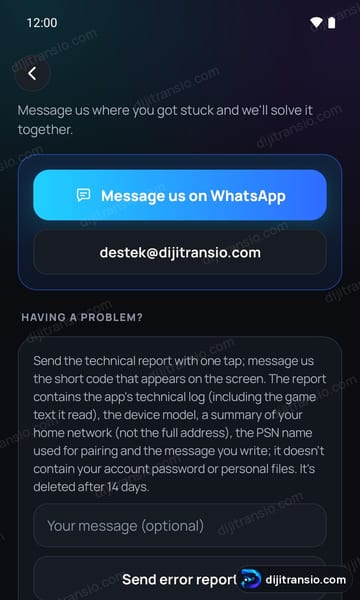
If the problem is on the TV, you can also send the report from the TV: on Android TV, Send error report on Dijitransio's home screen (or Help › Send error report); on LG, Report a problem in the page's menu. The report contains the app's technical log; it doesn't contain your password and is deleted after 14 days. Other ways to reach us are on the support page.