
How does it work on Samsung?
Dijitransio on your phone does the translation: your phone connects to your console through the console's own Remote Play feature (Sony's on PS5 and PS4, Microsoft's on Xbox), reads the game's English subtitles and translates them into Arabic or Turkish. The Dijitransio app installed on your Samsung TV then shows the translation over the console's picture, right where the English subtitle is.

- You play the game as usual on the TV, with the console's own controller. Your controller stays connected to the console.
- Nothing is installed on the console, and it isn't a patch. It works the same way on PS5, PS4 and Xbox.
- Setup is done once. Then in every game: turn on the console, open Dijitransio on the TV, and tap Start translation on your phone.
Which Samsung TVs does it work on?
- Samsung smart TVs from 2019 or newer (with the Tizen operating system). The phone reads the TV's year by itself during setup and tells you if the TV isn't supported.
- Dijitransio can't be installed on a Samsung older than 2019. For that TV, choose Translation on your phone in Dijitransio on your phone: the translation appears in large text on your phone's screen.
- You don't need a separate TV box or stick plugged into the Samsung; Dijitransio is installed directly on the TV itself.
Before you start: what you need
- An Android phone for setup (with Google Play). Setup is done only once; it can't be done from an iPhone.
- Home Wi-Fi: during setup, the phone and the Samsung TV should be on the same Wi-Fi. A guest network counts as a separate network; if a VPN is on on your phone, turn it off.
- A Samsung account: with its email and password. If you don't have one, you create one for free during setup.
- The TV's remote.
- Internet every time you play: your phone and your Samsung TV need to be online. The translation travels to the TV end-to-end encrypted; our server can't read it and doesn't store it.
- To connect your console, the requirements in the setup guide also apply: a free second PSN account on PS5 and PS4, your own Microsoft account on Xbox.
Setup is free. The phone doing the setup isn't asked to pick a plan.
The setup phone and the translation phone
There are two separate jobs here, and they can be done by two separate phones:
- Setup phone (Android): installs Dijitransio on the TV once. That's all. Setup is free; you don't buy a plan on this phone.
- Translation phone (Android or iPhone): in every game, it reads the game's subtitles through your console's Remote Play feature and translates them. You get the plan on this phone.
If your phone is an Android, both are the same phone. If your phone is an iPhone, you do the setup with an Android phone, then use everything with your iPhone.
1. Choose Samsung TV on your phone
- On phone On the Android phone, download Dijitransio from Google Play and open it. If it's already on the phone, update it first: older versions don't have the Samsung TV option.
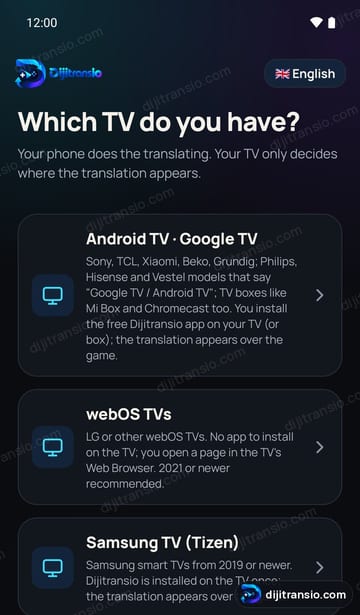
- On phone The first screen asks Which TV do you have? Choose Samsung TV (Tizen).
- On phone At the question Is Dijitransio installed on your TV?, tap Not installed yet. The setup steps open.
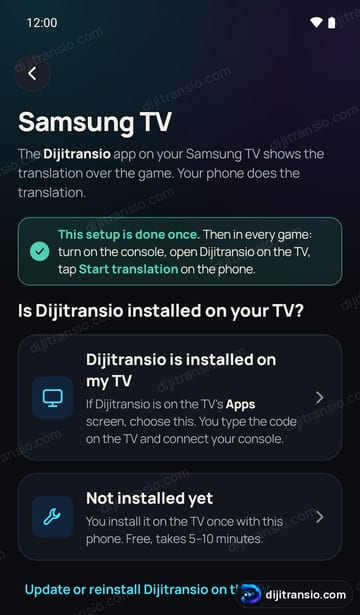
Setup has five steps; you see a counter like Step 1/5 at the top right of the screen. Even if you close the app, turn off the TV or come back the next day, setup continues from the step where you left off: on this screen you tap Continue where you left off.
2. Find the TV (Step 1/5)
- On TV The Samsung TV should be on: not in standby, with the screen on.
- On phone The phone should be on the same Wi-Fi as the TV. The phone searches for the TV by itself; within a few seconds a list of TVs found appears.
- On phone Tap your own TV in the list. The TV's model and year are shown too.
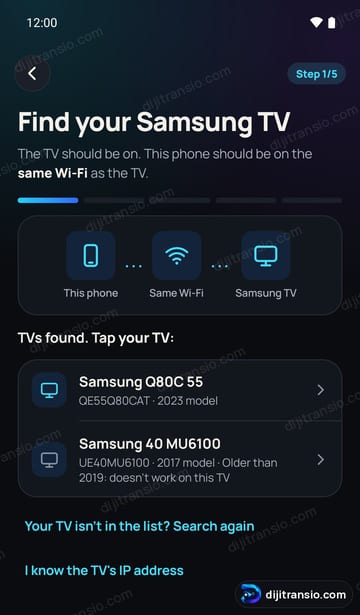
If your TV isn't in the list, tap Your TV isn't in the list? Search again. If it still doesn't appear, tap I know the TV's IP address and type the TV's address: you'll find it on the TV under (on newer models, Connection instead of General). Then tap Try this address.
3. Turn on Developer Mode on the TV (Step 2/5)
This setting is turned on once so that the phone can send Dijitransio to the TV. The phone splits this step into five small tasks; tap Done on the phone after each one. Because menu names change with the TV's year, the phone shows the path that fits your TV.
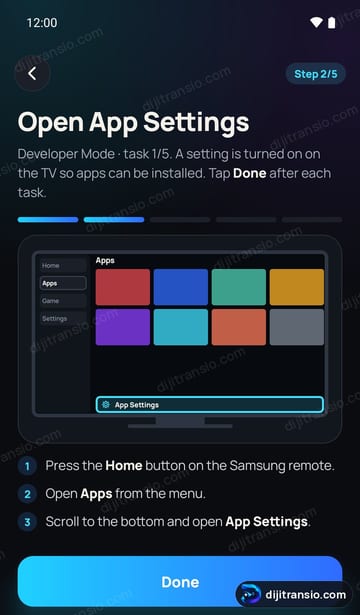
On TV Open the Apps screen
- Press the Home button on the Samsung remote.
- Open Apps from the menu.
- On TVs from 2023 or newer, scroll to the bottom of Apps and open App Settings. On 2019–2022 TVs, just stay on the Apps screen.
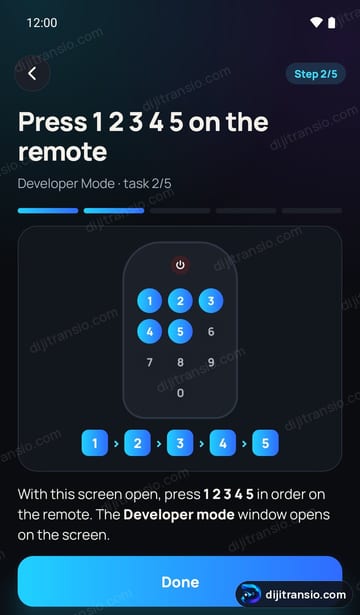
On TV Press 1 2 3 4 5 on the remote
With the Apps (or App Settings) screen open, press 1 2 3 4 5 in order on the remote. The Developer mode window opens on the screen.
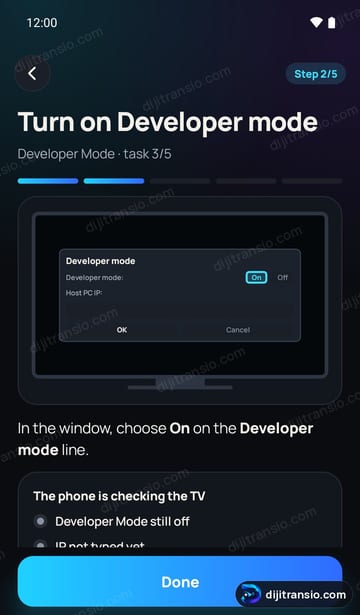
On TV Set Developer mode to On
In the window that opens, choose On on the Developer mode line.
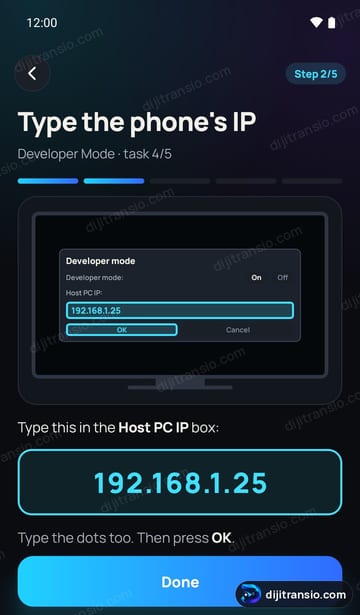
On TV Type the phone's IP
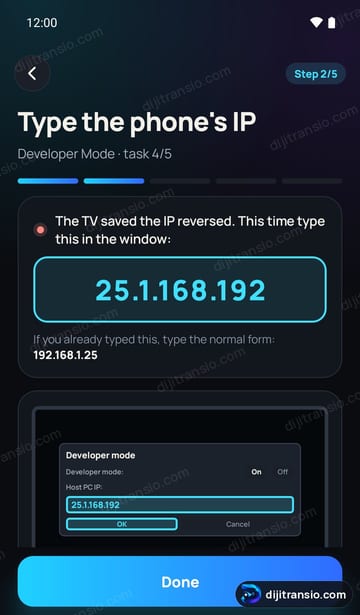
In the same window, type the number shown in large text on the phone's screen into the Host PC IP box. Type the dots too, then press OK. Each phone shows its own number; the one in the image is an example.
On TV Restart the TV
For the setting to take effect, the TV has to turn off and back on: press and hold the remote's power button until the TV turns off and comes back on (about 5 seconds). If that doesn't work, turn the TV off, wait 30 seconds and turn it back on.
Meanwhile, the phone checks the TV by itself. When Developer Mode on ✓ and IP correct ✓ turn green on the The phone is checking the TV card, setup moves on to the next step by itself; you don't need to tap anything.
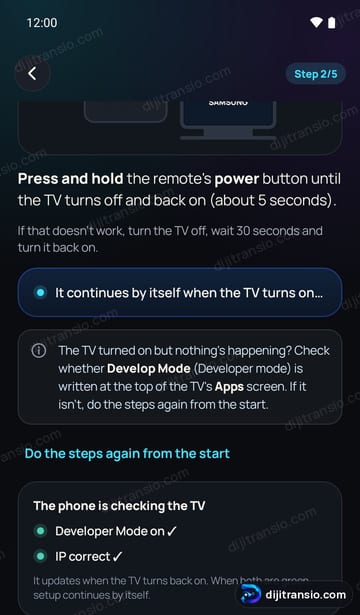
The phone also notices if the TV saved the address reversed or if the IP was typed wrong, and tells you in large letters exactly what to type in the window (see If something goes wrong below).
4. Sign in with your Samsung account (Step 3/5)
Samsung asks you to sign in once to install apps on the TV. It won't be asked again for this TV.
- On phone Tap Sign in with Samsung account. Samsung's own sign-in page opens in your phone's browser.
- On phone Sign in with your Samsung account's email and password. You type your password only on Samsung's page; Dijitransio doesn't see it or store it.
- On phone When sign-in is done, go back to Dijitransio. Setup continues by itself.
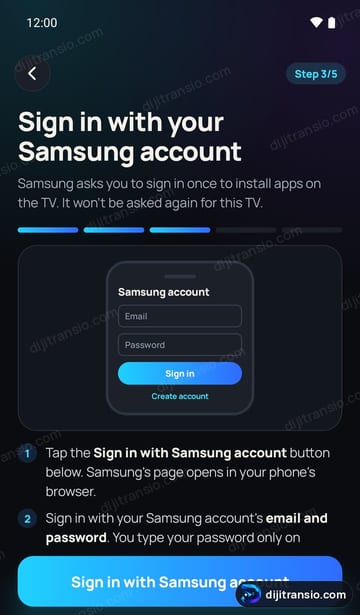
- If you don't have a Samsung account, tap Create account on the page that opens. It's free and takes 2 minutes.
- If you sign in to your Samsung account with Google, first set a password on your account: on account.samsung.com tap Forgot password?, and set a password with the link sent to your email. Then sign in with email and password.
- If your Samsung sign-in expires while setup is running, the phone goes back to this step and says "Your Samsung sign-in expired; sign in once more." Sign in again; setup continues where it left off.
5. Installing Dijitransio on the TV (Step 4/5)
On phone You don't do anything in this step: the phone gets the install permission, sends Dijitransio to the TV, installs it and opens it. The screen shows a percentage and what's happening at that moment; it takes a few minutes. Keep the TV on, keep the phone next to the TV on the same Wi-Fi, and don't close this screen.
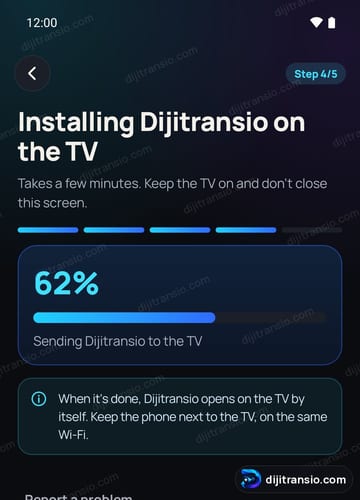
If something goes wrong, the phone tells you in one plain sentence what happened and what to do. Try again only redoes the remaining part.
6. Which phone will do the translation? (Step 5/5)
When setup is done, the phone asks: Which phone will do the translation?
- This phone: this phone translates while you play. On the next screen you turn on your console and type the code shown on the TV (section 7).
- Another phone (including iPhone): this phone doesn't connect to the TV and doesn't take up one of the TV's phone slots. On the phone that will do the translation, you open Dijitransio and type the code shown on the TV.
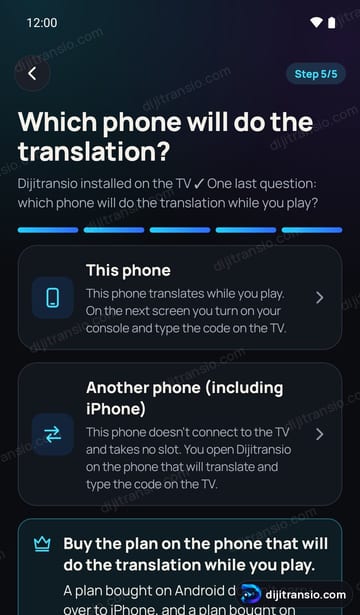
If you choose Another phone, the phone shows what to do on that phone, in order. If you scan the QR code on the screen with that phone's camera, Dijitransio's download page opens. When you tap OK, the setup phone's job is done.
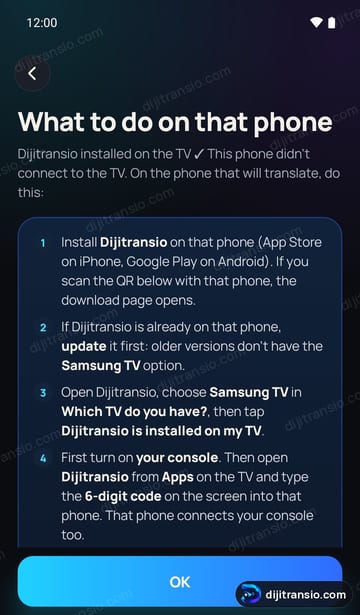
7. Open Dijitransio on the TV and connect your phone
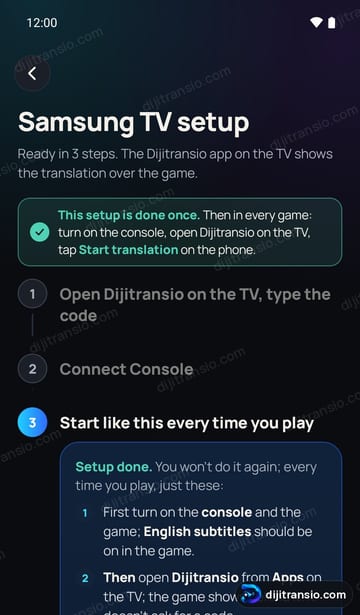
You do this section with the phone that will do the translation. If you chose This phone, this screen opens by itself. If you're continuing with another phone (an iPhone or another Android), open Dijitransio on that phone, choose Samsung TV (Tizen) at Which TV do you have? and tap Dijitransio is installed on my TV. If your console isn't set up on this phone yet, the phone first asks which one it is (PS5, PS4 or Xbox). Then the Samsung TV setup screen opens: ready in 3 steps.
On console First, turn on your console
Turn on your console (PS5, PS4 or Xbox). It's fine if the TV switches to the console's input by itself. The order matters: first the console, then Dijitransio on the TV.
On TV Open Dijitransio on the TV
Press the Home button on the Samsung remote and open Dijitransio from Apps. If you've just finished setup, Dijitransio is already open. On the first screen, press Start; you move around with the remote's arrow buttons and select with OK.
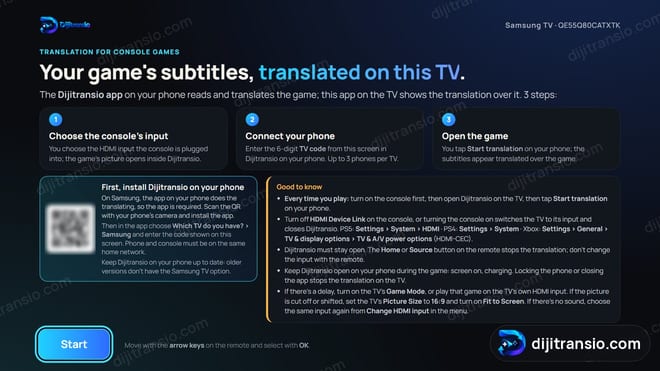
On TV Choose the console's HDMI input
Dijitransio asks which HDMI input on the TV the console is plugged into. If you're not sure, start with HDMI 1; the input number is written on the back of the TV, next to where the cable is plugged in. Unused inputs show empty underneath. The 1–4 buttons on the remote also select the input.
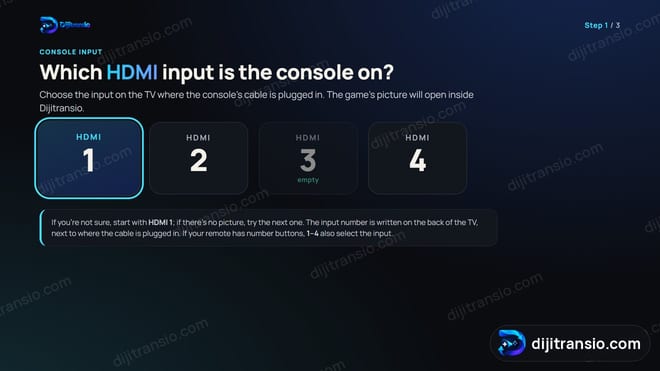
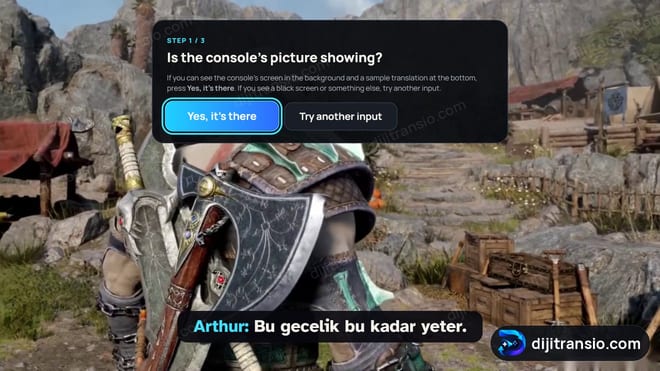
Once an input is chosen, the console's screen opens behind Dijitransio and a sample translated line appears at the bottom. At the question Is the console's picture showing?, press Yes, it's there if you can see the console's screen; if you see a black screen or something else, press Try another input.
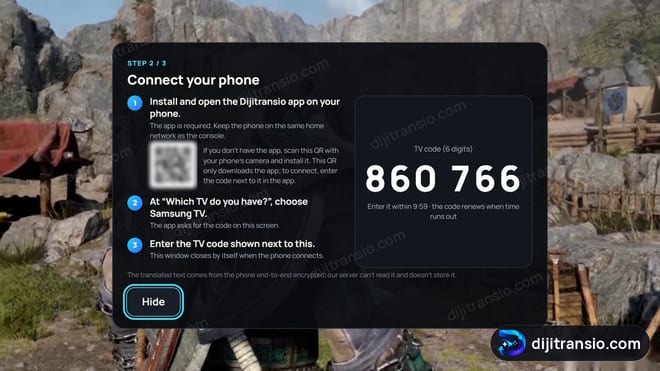
On phone Type the 6-digit code shown on the TV
When the picture comes up, the TV shows a Connect your phone window and a large TV code (6 digits). On the phone's Samsung TV setup screen, type this code in the 6-digit TV code box and tap Connect the TV. The code is valid for 10 minutes; when it expires, the TV shows a new one by itself. When the phone connects, the window on the TV closes by itself and Phone connected appears.
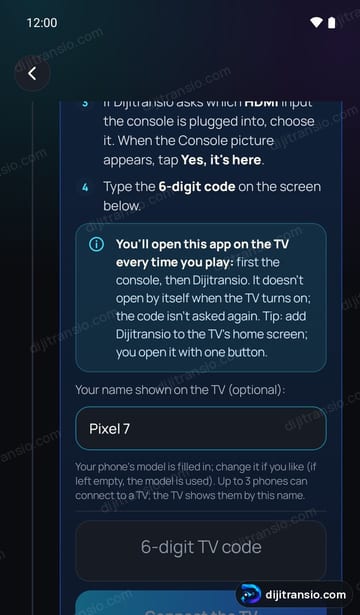
If the phone and the TV aren't on the same home Wi-Fi, the TV asks whether this phone may connect. If you typed the code, press Yes. If another phone has connected to this TV before, the code doesn't appear by itself: in Dijitransio on the TV, open the menu with the remote's OK button and choose Add phone. Up to 3 phones can connect to one Samsung TV.
8. Connect your console
Once the TV is connected, the phone moves on to step 2, connecting the console. This step is the same on every TV and is done in Dijitransio on your phone; the illustrated steps are in the setup guide: PS5 or PS4 and Xbox. If your console was already paired with this phone, this step is skipped automatically.
On Samsung, the phone suggests a setting at the start of this step: stopping the console from switching the TV's input (see below). Then at step 3 it says Setup done and lists what to do every time you play; you tap Go to home screen.
Recommended setting: don't let the console switch the TV's input
When the console turns on, the Samsung TV switches to the console's input by itself; Dijitransio on the TV then stays in the background and the translation isn't visible. To prevent this, turn off this setting on the console (once):
- PS5: : off.
- PS4: : off.
- Xbox: : off.
With this setting off, you turn on the TV with its own remote; nothing else changes. You can also leave it on: just turn things on in the order below. If the TV still switches by itself, also turn off on the TV (on newer models, Connection instead of General).
Every time you play
- On console First turn on your console and the game; English subtitles should be on in the game.
- On TV Then open Dijitransio from Apps on the TV. It doesn't ask for a code; the game screen shows behind it.
- On phone Open Dijitransio on your phone and tap Start translation. The first time you start, you choose a plan: you get it on this phone. Keep the phone on and charging for the whole game.
- Keep Dijitransio open on the TV. The Home or Source button on the remote stops the translation; don't change the input with the remote while you play. If you want to change the input, open the menu in Dijitransio on the TV with OK and choose Change HDMI input.
- Keep the phone in front, with the screen on and charging. If you lock the phone or close the app, the translation on the TV stops. Instead of turning off the screen, use Dim the screen on the phone. Details are in the "Phone while playing" section of the setup guide.
- To exit, press EXIT on the remote or choose Exit the app in the menu.
Using Samsung TV with an iPhone
Dijitransio on iPhone works fully with Dijitransio installed on a Samsung TV; only installing it on the TV can't be done from an iPhone.
- On phone Do the setup once with an Android phone (sections 1–6). At the last question, choose Another phone (including iPhone).
- On phone Download Dijitransio on your iPhone from the App Store. If you already have it, update it first: older versions don't have the Samsung TV option.
- On phone On the iPhone, choose Samsung TV (Tizen) at Which TV do you have?, then Dijitransio is installed on my TV, and continue from section 7.
If you tap Not installed yet on the iPhone, the iPhone shows a QR code for this page: scanning it with the camera of the Android phone that will do the setup opens these steps. You get the plan on the iPhone; a plan bought on Android doesn't carry over to the iPhone.
Updating and reinstalling Dijitransio on the TV
Most Dijitransio updates reach the TV by themselves. Turning the TV off and on, unplugging it and small TV updates don't remove Dijitransio.
- If Dijitransio on your phone says Dijitransio on the TV is old, you update it with the setup phone: Developer Mode should be on on the TV; on the phone, tap Samsung TV › Update or reinstall Dijitransio on the TV. If Developer Mode has been turned off, setup shows you again how to turn it on.
- If the TV was reset to factory settings, or if after a big TV software update Dijitransio isn't in Apps or doesn't open, you reinstall it with the same steps. The Samsung sign-in usually isn't asked for again.
If something goes wrong
| What you see | What to do |
|---|---|
| TV not found | Is the TV on, and on the same Wi-Fi as the phone? Don't use a guest network or a VPN. If that doesn't work, tap I know the TV's IP address and type the address (on the TV: Settings › General › Network › Network Status › IP Settings). |
| Under the TV in the list: "Older than 2019: doesn't work on this TV" | Dijitransio can't be installed on this TV. Tap Show the translation on the phone: the translation appears on your phone's screen. |
| The window doesn't open when you press 1 2 3 4 5 | Press slowly while the Apps or App Settings screen is open. If that doesn't work, try the other screen; if there are no number buttons, use the 123 button. |
| "The TV saved the IP reversed" | Some Samsung TVs reverse the address typed in this box. Type the address the phone shows in large text (the reversed one), then turn the TV off and on; the TV saves it the right way. |
| "The IP on the TV isn't this phone's" | Open the window again, type the number on the phone's screen exactly, with its dots, then turn the TV off and on. |
| The TV turned on but setup isn't moving | Check whether Develop Mode is written at the top of the TV's Apps screen. If it isn't, tap Do the steps again from the start on the phone. |
| A permission question appeared on the TV | Choose Allow. |
| Samsung sign-in not finished | Tap Sign in with Samsung account again. If you created your account with Google, first set a password on account.samsung.com. |
| The TV's clock is wrong | On the TV, set the clock to Auto in Settings › General › System Manager › Time, then tap Try again. |
| No space on the TV | Delete an app you rarely use from the TV (in Apps, on the app: Options › Delete), then tap Try again. |
| No Samsung TV option on the phone | Dijitransio on the phone is out of date: update it from the store. |
| The TV switched to the console's input by itself and the translation disappeared | Open Dijitransio again from Apps on the TV. To stop it happening again, turn off HDMI Device Link on the console (HDMI-CEC on Xbox), as described above. |
| The controller feels laggy | Turn on the TV's Game Mode. If that doesn't help, play that game on the TV's own HDMI input (without Dijitransio). |
| The picture is cut off or shifted | On the TV, set Picture Size to 16:9 and turn on Fit to Screen. |
| No sound | In Dijitransio on the TV, open the menu with OK and choose the same input again from Change HDMI input. |
| The screen goes dark while playing | While Dijitransio is open, it turns off the TV's screen saver by itself. If the screen still goes dark, turn off Auto Power Off and No Signal Power Off on the TV under Settings › General › Eco Solution (Power and Energy Saving on newer models). |
There's a Report a problem button at the bottom of every setup screen on the phone; Dijitransio on the TV also has Report a problem in its menu. When you tap it, your error report reaches us and we can see which step you got stuck on; send us the code shown on the screen on WhatsApp. If you also tell us the TV's model, we can help faster.