
How does it work on a TV box?
A TV box or stick plugs into one of your TV's HDMI inputs, while your console sits on another input. The box has no HDMI input of its own, so the console's picture never passes through it. That's why, on a box, the game reaches the box another way: the box plays it through your console's Remote Play feature.

- You tap Start translation on your phone.
- Through Sony's Remote Play feature, your PS5 or PS4 streams the game to the box over your home router. If the console is in rest mode, the box wakes it up first.
- The game fills the box's whole screen. Both the picture and the game's sound go from the box to your TV.
- The box reads the English subtitle and sends it to your phone, your phone translates it, and the translated line goes back to the box and sits right where the English was.
- The controller stays with the console. You play with your PS5's or PS4's own controller, as always; it doesn't pair with the box or the phone.
- Any screen works. The box works on whatever TV, monitor or projector it's plugged into; the screen doesn't need to be smart. An old TV works too.
- Picture quality: if the box is wired or on a strong 5 GHz Wi-Fi, PS5 games come in at 1080p, 60 frames per second. On 2.4 GHz Wi-Fi, with a weak signal or on boxes with little memory, they come in at 720p, still at 60 frames per second. PS4 games come in at 720p.
- Your console isn't modified. Nothing is installed on the console and nothing is patched. During play the console doesn't even need to be connected to a screen; the TV stays on the box's input.
- PS5 and PS4. The box can't play Xbox games; if you have an Xbox, the Translation on your phone option on your phone does the job.
Which boxes does it work on?
Boxes and sticks running Android TV or Google TV with the Google Play Store (Android 9 or newer):
- Xiaomi: Mi Box S, Xiaomi TV Box S, Mi TV Stick and Mi TV Stick 4K
- Google: Chromecast with Google TV (HD and 4K) and Google TV Streamer
- Nvidia Shield TV
- Other Android TV and Google TV boxes with the Google Play Store
If you're not sure about your box, look for the Google Play Store icon on its home screen. If the device info section in the Settings menu mentions Android TV or Google TV, the box is compatible.
Before you start: what you need
- Box: an Android TV or Google TV box with Google Play, as above, plugged into an HDMI input on your TV or monitor.
- Phone: the device that does the translating. It can be an Android phone with Google Play (version 9 or newer) or an iPhone running iOS 18 or later. The app is on Google Play and the App Store.
- Console: a PS5 or PS4 and a free backup (second) PSN account. How to create one is in section 3 of the setup guide.
- Home network: the box and the console should be on the same router. Connect the box with a cable if you can; without a cable, pick 5 GHz Wi-Fi. A guest network counts as a separate network.
- Setup day: keep your phone on the same home Wi-Fi as the console too, because pairing with the console is done from your phone. The console must be connected to a screen at that point so you can read the 8-digit code that appears on it; in most homes the TV's other HDMI input is enough.
- Internet: both the phone and the box need to be online. The English line the box reads goes to your phone, and its translation goes back to the box, end-to-end encrypted; our server can't see or keep the content.
- The console's controller, the box's remote and a charging cable for your phone.
Setup is free. You choose a plan on your phone the first time you start translating; the app on the box has no purchases.
1. Choose Android TV · Google TV on your phone
- On phone Download the Dijitransio app on your phone and open it; if it's already on your phone, update it to the latest version first.
- On phone In the Which TV do you have? list that opens, tap Android TV · Google TV. Your box is an Android TV or Google TV device, so setup runs through this option; the brand of your TV doesn't matter.
- On phone Then pick your console: PS5 or PS4. The screen that opens first asks Where are you installing Dijitransio?: choose On a box plugged into the TV. The title becomes TV box setup and the steps are written for the box; the sections below follow the same order.
2. Install Dijitransio on the box
If you have an Android phone, you can send the app to the box from your phone; no typing with the box's remote:
- On phone Tap the Install on the box from your phone button on the setup screen; Dijitransio's Google Play page opens.
- On phone Tap the small arrow next to the Install button on that page, or the Install on more devices link. Select your box in the device list and confirm the install.
- On phone The app arrives on the box in a few minutes. Go back to the setup screen and tap I installed it on the box.
If your box isn't in the list, your phone's Google account isn't signed in on the box. In that case, and also if you use an iPhone, get the app from the box's own store: with the box's remote, open the Google Play Store (on the Google TV interface, open search from the Apps tab), search for Dijitransio and install it; if the box has an older version, update it. Then tap I installed it on the box on your phone.
The app on the box is free. If Dijitransio doesn't show up at all in the box's store, the box's Android version may be too old; send us the model on WhatsApp and we'll take a look.
3. Open Dijitransio on the box: Yes, this is a box
- On TV Switch your TV's input to the box and launch Dijitransio with the box's remote.
- On TV The first time the app opens, the top of the screen says Is this device a TV box? Move to the Yes, this is a box button with the remote and press OK.
- On TV A QR code and a 6-digit TV code appear on the box's screen. Leave the screen as it is, go back to your phone and tap I see the QR and code on the box.
No "display over other apps" permission is asked on a box: the game already plays on Dijitransio's own screen and the translation is drawn on top of it. If you chose No, this is a television by mistake, fix it with the Box or television? button on the Help screen of Dijitransio on the box.
The TV code on the screen is valid for 10 minutes; when it expires, the box puts up a new one by itself. If a phone was already connected to the box, the code doesn't appear by itself; in Dijitransio on the box, go to Phones › Add phone.
4. Connect your phone to the box
- On phone On the setup screen, tap the QR scan button and point your phone's camera at the square on the box's screen. If the camera doesn't work, type the six-digit TV code into the field on the same screen; pairing starts by itself at the last digit.
- On phone Once paired, your phone shows TV connected ✓ and the box's screen shows your phone's name.
For pairing, the phone and the box just need to be able to reach the internet; it's better if they're on the same home Wi-Fi. If the phone is on another network, the box asks for approval on screen: if you're the one who typed the code, choose Yes. Up to 3 phones can be connected to one box; for the QR and the phone list, see section 2 of the setup guide.
5. Pair your PS5 or PS4
This step is the same on every TV and happens entirely on your phone: you sign in on Sony's page with your backup account, get the 8-digit code on the console while on the backup account and type it into your phone, then switch back to your own account on the console. Screen-by-screen instructions are in section 3 of the setup guide. Two details matter when you use a box:
- You need to see the console's screen. To get the code and switch accounts, use the input button on your TV's own remote (Source or Input) to switch to the input the console is plugged into. When you're done, switch the TV back to the box's input.
- Pairing is done from your phone. So during setup your phone must be on the same home Wi-Fi as the console. While playing, this requirement goes away; from then on the game reaches the box through Remote Play.
6. Last setup step: Game on the box
Your phone recognizes by itself that the device it's connected to is a box and skips the sample text step used for TVs. Instead, in the Game on the box step it shows these rules:
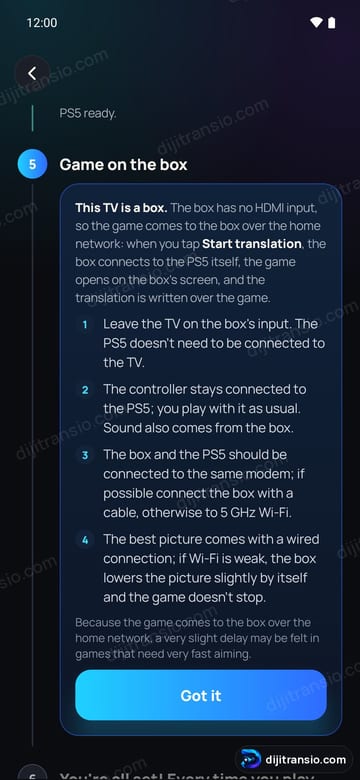
- Leave the TV on the box's input. The console doesn't need to be connected to the TV.
- The controller stays connected to the console; you play with it as usual. Sound also comes from the box.
- The box and the console should be connected to the same router; if possible connect the box with a cable, otherwise to 5 GHz Wi-Fi.
- The best picture comes with a wired connection; if Wi-Fi is weak, the box lowers the picture slightly by itself.
Tap Got it. The last screen says Setup done. and gives a short list for every time you play; leave it with Go to home screen.
7. First game: Start translation on your phone
- On TV Switch the TV to the box's input and run Dijitransio on the box. The box finds your phone by itself, and its screen shows a message waiting for you to start from the phone.
- On phone Open Dijitransio on your phone and tap the big Start translation button. The first time, you pick your plan; payment is made on the phone.
- On TV The game screen opens on the box and first says Searching for the PS5…. The Remote Play session starts, waking the console from rest mode if needed; a few seconds later the console's screen fills the box's screen.
- On console Open your game and play with the controller. Turn on English subtitles in the game's settings; the translated line appears where the English one was.
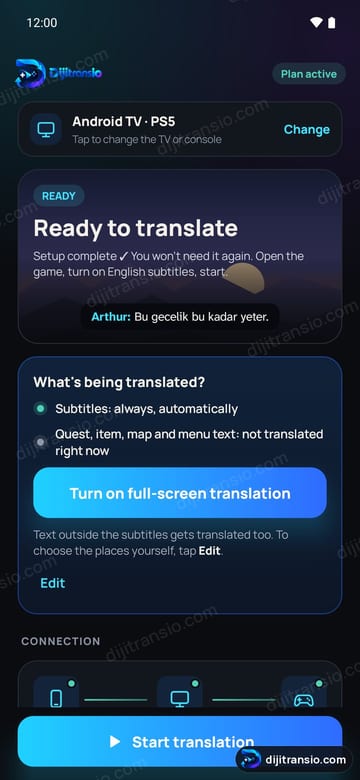
When the game comes up, your phone's status line reads Translation on · game on the box. If you paired the console a few minutes ago, the console needs about a minute to settle: your phone counts down with The PS5 is finishing pairing; the box will connect by itself, and when the countdown ends, the game starts on the box by itself.
When you stop playing, tap Stop translation on your phone; the game screen on the box closes and the box ends the Remote Play session. Pressing Back on the box's remote also closes the game screen and stops the translation on your phone.
Every time you play
Setup is a one-time thing; your phone remembers the box and the console. When you want to play:
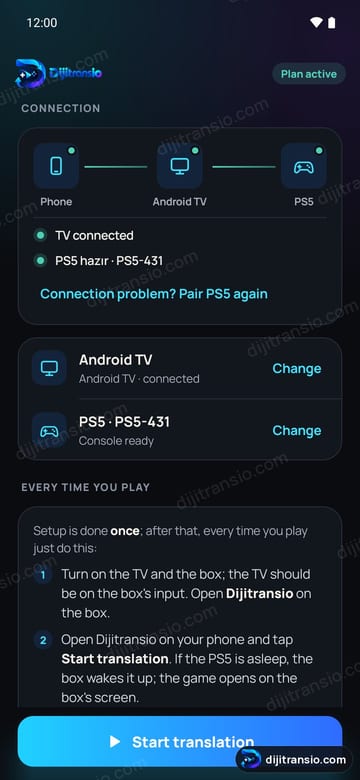
- On TV Turn on the TV and the box, keep the TV on the box's input, and launch Dijitransio on the box.
- On phone Tap Start translation on your phone. If the console is asleep, the box wakes it up and the game appears on the box's screen.
- On console Pick up the controller and play; keep English subtitles on in the game.
- Dialogue is translated automatically. If you also want quest, item and map text translated, turn on Full-screen translation on your phone's home screen.
- Keep your phone on, in front and charging. If the light bothers you, use Dim the screen. If you lock the phone or close Dijitransio, the game keeps running on the box but the translation stops coming.
- Don't leave Dijitransio on the box. While you play, the Home or Back button on the box's remote closes the game screen. If it closes, reopen Dijitransio on the box and tap the start button on your phone again.
- Your phone just needs internet. During play your phone doesn't have to be on the same Wi-Fi as the console; it's better if it's on the same home Wi-Fi as the box.
Home network for a good picture
Because the game comes to the box over your home network, the network decides the picture quality:
- Connect the box and the console to the same router. If you have a second router or a range extender at home, connect both to the same device. A guest network counts as separate.
- A cable is best. On sticks without a cable port, pick 5 GHz Wi-Fi and keep the router close to the stick. Connecting the console to the router with a cable helps too.
- The box picks the setting itself. With a cable or strong 5 GHz Wi-Fi, it starts PS5 games at 1080p and 60 frames per second, otherwise at 720p and 60 frames per second. If the connection weakens during play, it steps down one level: the screen goes dark for a moment and the game continues where it left off. If the connection drops, the box reconnects by itself.
Picture, sound and settings
- Sound comes from the box. The game's sound goes to the TV through the box; turn it up or down with the TV's or the box's remote.
- All settings are on your phone. Subtitle appearance, the subtitle area and Full-screen translation are changed in Dijitransio on your phone; the box applies the settings of the phone that's translating at the moment. Details are in section 12 of the setup guide.
- The translation engine is on your phone too. The free offline engine runs on your phone; if you like, you can add your own translation service key (DeepL, Gemini, Claude and others): translation services.
Recommended settings
- Let the console wake from rest mode. Turn on the rest mode settings from the setup guide once; then, when you start, the box wakes the sleeping console by itself. If the box can't wake your PS4, turn the PS4 on with the controller before playing.
- Hide the “Remote Play connected” pop-up. The PS5 shows this small pop-up when the game starts, and it can cover the subtitles; how to hide it is in section 10 of the setup guide.
On console Don't let the console switch the TV's input
If the console is also connected to the same TV with an HDMI cable, the TV may jump to the console's input by itself when the console wakes up, leaving the box's screen in the background. If this happens, switch the TV back to the box's input or turn off the console's HDMI device link:
- PS5: : off.
- PS4: : off.
On TV Keep the box's screen from going dark
Since you play with the console's controller, nobody touches the box's remote for a long time. Dijitransio keeps the box's screen on throughout the game; if a screensaver still appears or the box goes to sleep, set the screensaver and sleep times (on some boxes under Energy or Power) in the box's Settings menu to the longest option, or turn them off. Menu names vary by model. If the TV turns itself off after a while, also turn off the TV's auto power-off (eco) setting.
Frequently asked questions
My TV isn't an Android TV; will it work? Yes. On the box route your TV's system plays no part; the box draws both the game and the translation. A non-smart TV, a monitor or a projector works too.
Can I use it with a box plugged into a Samsung or LG TV? Yes, you install it on the box and the game opens on the box's input. Even without a box there's a way: on LG TVs from 2016 onward the page in the browser, and on Samsung TVs from 2019 onward Dijitransio installed on the TV, write the translation over the game.
My phone is an iPhone; does it work with a box? Yes. You install the app on the box from the box's own Google Play Store. On your iPhone, choose Android TV · Google TV and scan the QR code on the box; your iPhone does the translating, and you get your plan from the iPhone too.
Does it work with Xbox? No. The box only opens PS5 and PS4 games. With Xbox, choose Translation on your phone on your phone; the translated lines appear on your phone's screen.
Does the console have to be connected to a screen? Not during play; the picture comes to the box over the network. Only during setup does the console need to be connected to a screen, so you can see the 8-digit code on it.
How do I get the best picture? Connect the box with a cable, or failing that with 5 GHz Wi-Fi, and connect the console with a cable too; both should be on the same router. More above: Home network for a good picture.
Do I buy the plan on the box? No. The plan is chosen on the phone that does the translating; Dijitransio on the box is free.
How many phones can connect to a box? Up to 3. Whichever phone taps Start translation does the translating; details are in section 11 of the setup guide.
If something goes wrong
If an error message appears on the box, the Back button on the box's remote closes it. If your console is a PS4, the messages say PS4 instead of PS5.
| Where | Message on screen | What to do |
|---|---|---|
| Box | I answered the question “Is this device a TV box?” wrong | On the Help screen of Dijitransio on the box, choose Box or television?, then Yes, this is a box. |
| Phone | No answer from the box | Dijitransio isn't open on the box, or the box has no internet. Open the app on the box, check its network, and tap the start button on your phone again. |
| Box or phone | Dijitransio's game screen couldn't open on the box | The box doesn't let an app in the background open a screen. Open Dijitransio on the box and leave it in front, don't go back to the box's home screen; then start again from your phone. |
| Box | The PS5 wasn't found | Is the console on or in rest mode, and is it on the same router as the box (not a guest network)? For it to be found while asleep, the rest mode settings must be on. Turn the PS4 on with the controller. |
| Phone | The box couldn't connect to the PS5 | Check that the console is on and on the same network as the box; connect both to the same router and start translating again. |
| Box | The PS5 is closing the previous connection; trying again… | Do nothing; when the time on screen runs out, the box tries again. |
| Box | The PS5 still isn't accepting the new connection | If Remote Play is open on another device at home (phone, computer, PS Portal), close it. Fully turn the console off and on, then start translating again from your phone. |
| Box | The PS5 refused the session (80108b26) | The setting is per user: on the console, switch to the backup account and check Remote Play for that account too on the screen. The backup account must not be a guest; it must be a registered user on the console. If it continues, turn the console off and on; if that doesn't help either, pair the console again from your phone. |
| Box | Remote Play is off on the PS5 | Turn the Remote Play setting on in ; it should be on for the backup account too. On PS4 it's in . |
| Box | The PS5 doesn't recognize this pairing | The console's pairing was deleted. On your phone's home screen, tap Connection › Pair PS5 again. |
| Box | The PS5 pairing didn't arrive | Start translating again from your phone. |
| Box | No picture came from the PS5 | Restart the console and the box, then start translating again from your phone. Moving the box to a cable or 5 GHz Wi-Fi also helps. |
| Box | Connection lost, reconnecting | Wait; the box reconnects by itself. If it happens often, see the home network tips. |
| Box | No translation coming from the phone | Is Dijitransio open and in front on your phone, and is it online? If the phone is locked, unlock it. |
| Box | Dijitransio on the phone doesn't recognize this box | The app on your phone is an older version that doesn't know box mode. Update it from the store, then start translating again. |
| Phone | No word from the box | The box's internet connection may have dropped; check the box's Wi-Fi or cable. |
| Phone | The game was closed on the box; translation stopped | Back or Home was pressed on the box. Reopen Dijitransio on the box and start again from your phone. |
| Phone | Only PS5 and PS4 games play on the box | The box can't open Xbox. At the top of your phone's home screen, tap Change on the TV · console card and choose Translation on your phone. |
| Phone | Dijitransio on the box thinks it's a television | This way the game won't appear on the box's screen. Update Dijitransio on the box, on the box tap Help › Box or television? › Yes, this is a box, then tap I fixed it on the box, continue on the phone. |
| Box | An unexpected error occurred | Close and reopen Dijitransio on the box, then start translating from your phone. |
| Box | The screen goes dark while playing | Check the box's and the TV's energy settings: keep the box's screen from going dark. |
| Box | The TV switched to the console's input by itself | Switch the TV back to the box's input; to stop it from happening again, turn off the console's HDMI device link (see above). |
| Box | The translation doesn't appear | Are subtitles on in the game, and set to English? Is translation running on your phone? If you set Subtitle area to Choose manually on your phone, check its position or switch it to Automatic. |
On phone Send an error report
Wherever you got stuck, tap Send error report on the Help & about screen on your phone; you get a short code. If the box is on while your phone is connected to it, the box's report reaches us along with it. You can also send the report straight from the box: in Dijitransio on the box, go to Help › Send error report. Send the code on WhatsApp or to destek@dijitransio.com; if you include your box's model, we can help faster.